


Best Guide to Transfer Libby Books to USB Drive
Putting Libby audiobooks on a USB drive delivers pretty much convenience for users. However, you may encounter Libby's encryption protection and notice that it does not work directly. Thankfully, this woe can be addressed with the help of AnyLibro Converter. In this article, we'll cover how to download and transfer Libby books to your USB drive, as well as provide some troubleshooting tips.
Get AnyLibro Converter installed → Convert Libby books to MP3 / EPUB → Copy Libby MP3 audiobooks to your pen drive
Part 1: Can I Directly Transfer Libby Books to USB Drive?
Officially, no—but technically possible.
Typically, there is no direct option to transfer Libby books to a USB flash drive. The Libby ebooks or audiobooks are encrypted as protected audio formats and tied to a loan period, after all. Even if you download a title inside the Libby app, Kindle, or Kobo, the actual files stay locked to that app or device. You can read or listen Libby books there, but you can’t simply grab the raw audiobook or ebook file and drag it onto a USB flash drive.
Moving downloaded Libby titles to a USB drive will bring many conveniences, especially for Libby users who regularly get audiobooks from their local library. Here's what you get with Libby for USB transfers:
Here's what you get with Libby for USB transfers:
- ✅ Offline Listening: Enjoy offline playback of Libby books for car or travel, with no need for apps or network access.
- ✅ Easy Transfer: You can easily move Libby audiobooks to MP3 players and other compatible devices.
- ✅ Long-term Backup: USB drives helps keep downloaded Libby audiobooks forever, even after the loan period ends.
Part 2: How to Downlod Libby Books to USB Flash Drive
- A workable USB Flash Drive
- AnyLibro Converter⬇️
To download Libby audiobooks and ebooks to your USB drive, AnyLibro Converter comes as the best solution.
AnyLibro Converter specializes in converting books from Libby to generic MP3 files, making them readily transferable to a USB drive. Apart from the MP3 format, AnyLibro effortlessly downloads Libby books to M4A (.aac), M4B (.alac), and EPUB files—all while preserving lossless audio quality and complete ID3 tags for each chapter. It lets you enjoy your top Libby books, like offline listening and playback on portable e-readers.
AnyLibro Converter
Steps to Download and Transfer Libby Books to USB with AnyLibro
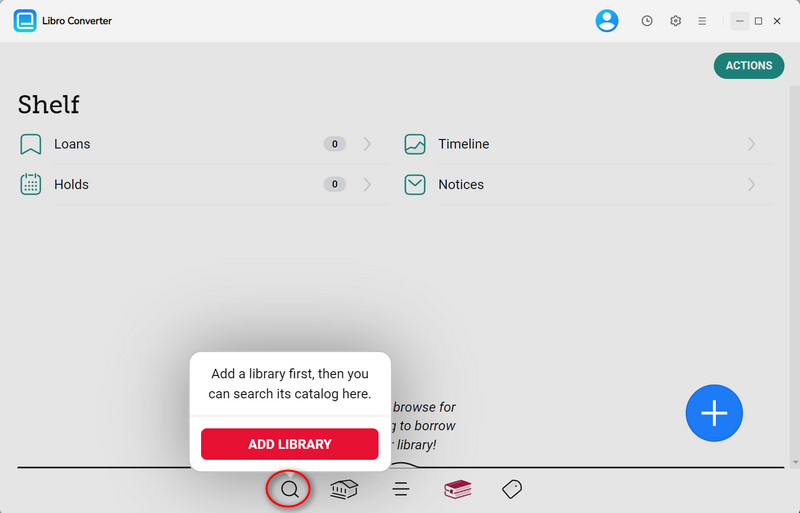
Step 1.Download and install AnyLibro Converter on your computer. Next, open it and click the search icon at the bottom. Enter the name of your local library and log in using your library card details
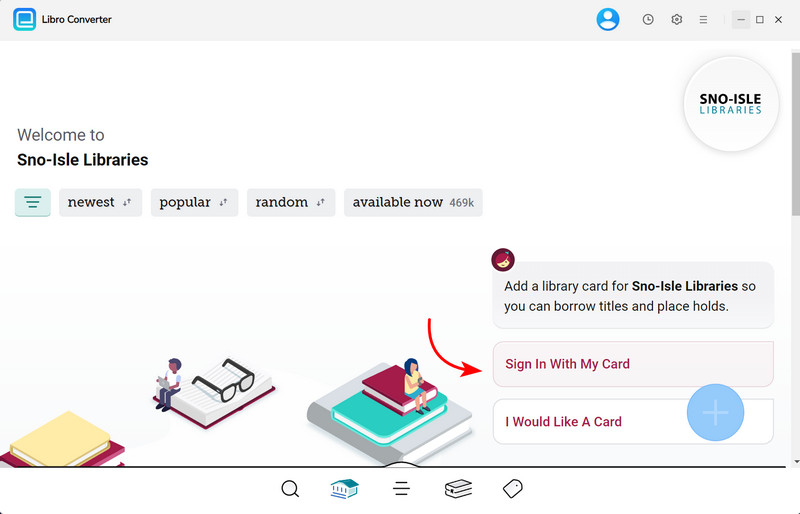
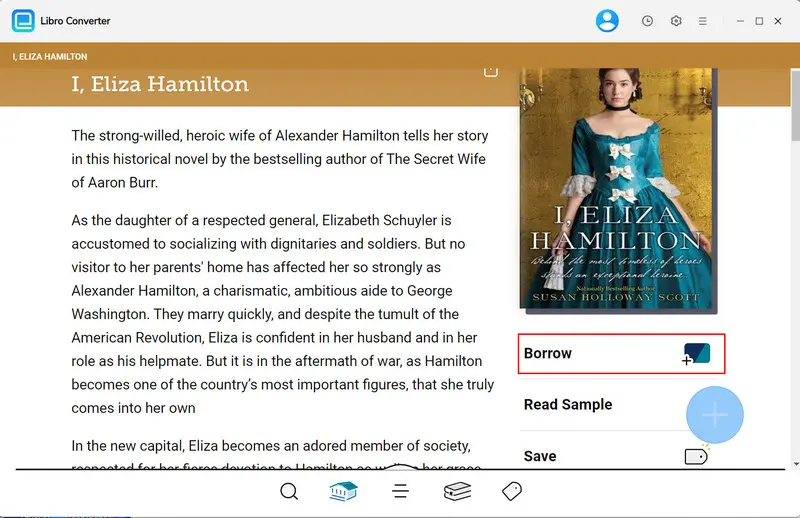
Step 2.Search for the audiobooks you like and want to download, then add them to your Loan list.
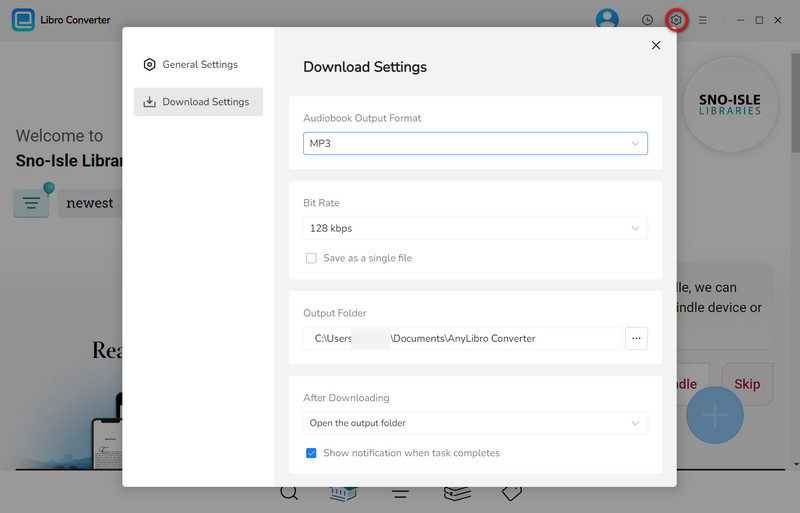
Step 3.Click the gear icon in the upper-right corner to open Settings. Select MP3 as the output format, and choose parameters such as bit rate and output folder as needed.
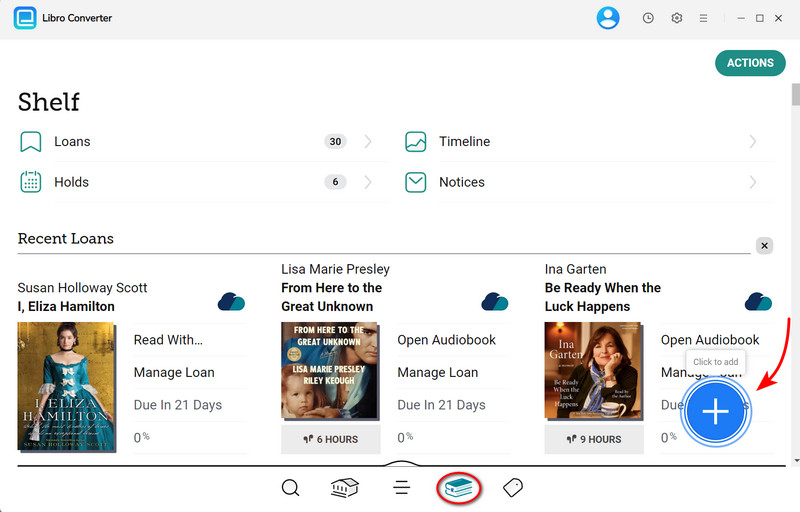
Step 4.Click the book icon to navigate to the bookshelf section. Next, click the floating “+” button to add the audiobook to the conversion queue.
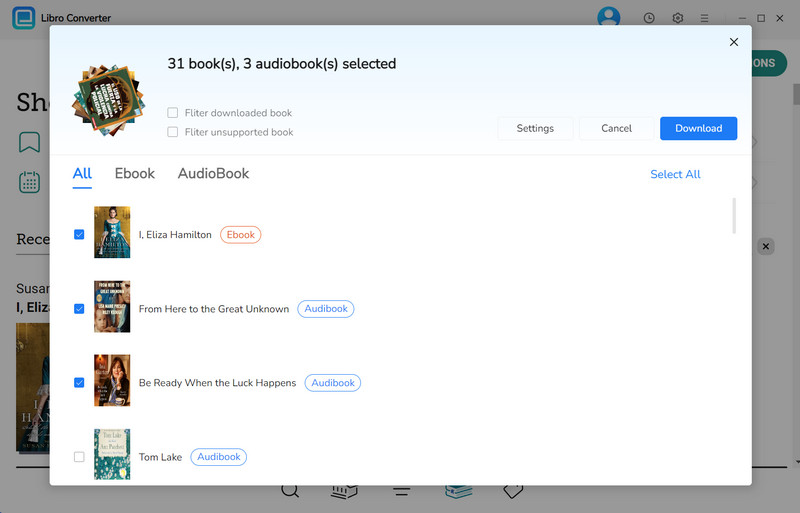
Step 5.Click the "Download" button to begin converting the audiobook.
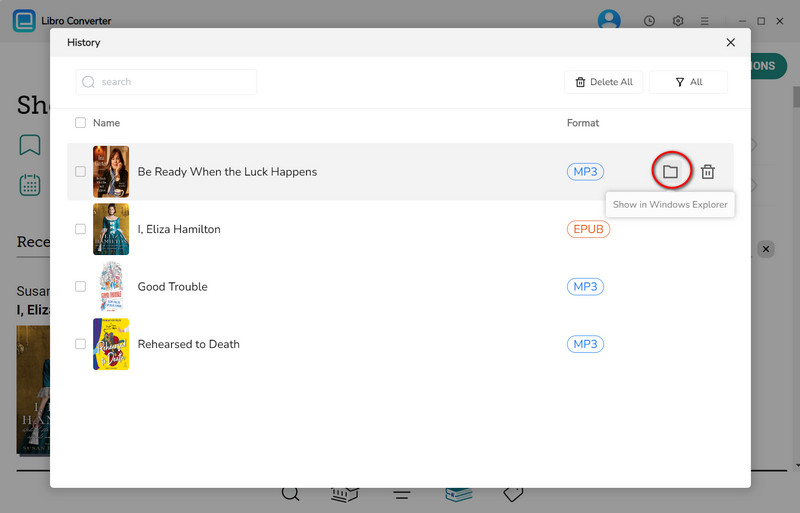
Step 6.After conversion is complete, click the clock icon in the upper-right corner to view the finished audiobooks. Hover your mouse over a downloaded audiobook and click the folder icon to navigate to the output folder.
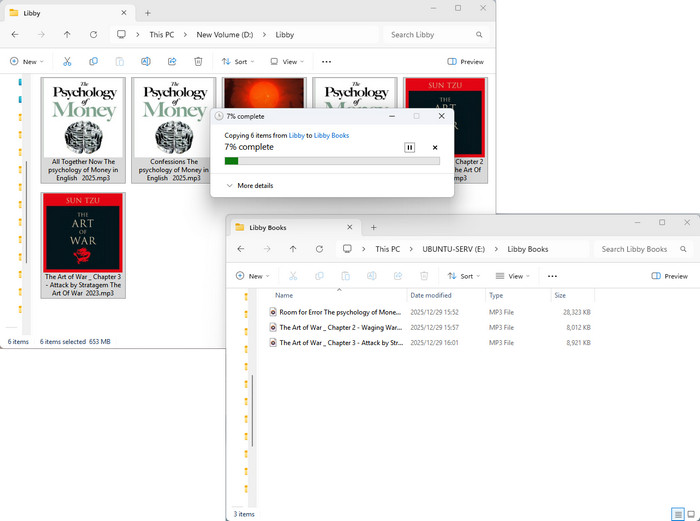
Step 7.Now it's time to copy the converted Libby audiobooks to the pen drive. It just takes several steps.
1. Plug the USB drive into a USB port and connect it to your computer.
2. Open the target folder and select the converted audiobooks you want to copy.
3. Directly drag and drop or copy and paste the selected Libby books into the media folder of your USB drive.
4. Wait for the files to copy. Once done, all your Libby MP3 audiobooks are successfully transferred to the USB drive.
YouTube Video: How to Transfer Libby Books to a USB Drive
⚙️ Troubleshooting Libby to USB Transfer
💡The USB Drive Does Not Recognize Libby Downloads
You need to see if you’ve successfully converted Libby books to generic audio formats, like MP3 and EPUB. Also, ensure your pen drive is still working normally.
💡Fail to Convert Libby to MP3
First, check that you've successfully added the desired audiobook to Libby's shelf and that it is in the loaning period. Furthermore, the Libby ebook cannot be exported as MP3 but as EPUB.
💡Audiobook Playback Stops Randomly on the Device
This often happens with long single-file audiobooks. It is advisable to split the audiobook into different chapter files.
Libby to USB Transfer – FAQ
Q1: Can I download Libby audiobooks as MP3s?
No. Libby does not have a built-in option for MP3 downloads. But AnyLibro Converter can get the job done easily.
Q2: Can I keep Libby books playable after transferring them to USB?
Yes. The USB drive retains your Libby downloads indefinitely, even after the loan period has ended.
Q3: Can I play Libby audiobooks on my car's USB port?
Yes. Libby encrypted files won't work on a USB port in your car. Nonetheless, you can still play Libby audiobooks in your car by connecting through Bluetooth, using an aux cable, or by transferring Libby MP3 files to a USB drive.
Wrapping It Up
The guide has enlightenes you how to download and transfer Libby books to USB drive. All you need is to get AnyLibro Converter and save Libby audiobooks to MP3, later you can take full control over your audiobooks collection. Now that you know the trick, your audiobooks are no longer locked away—grab your USB and unlock your audiobooks to listen on any device!

Clara Whitman
Clara specializes in creating practical guides for book lovers and digital reading tools.
With years of experience exploring apps like Libby, Kindle, and Audible, she shares clear, step-by-step tips to help readers get the most out of their eBooks and audiobooks.

 Libby Audiobook Converter
 All-In-One Music Converter
 Spotify Music Converter
 Apple Music Converter
 YouTube Music Converter
 Amazon Music Converter
 Tidal Music Converter
 Streaming Music Recorder
 Photo Enhancer AI
 Video Enhancer AI
 Audible Audiobook Converter