


How to Sync Libby Across Multiple Devices: The Ultimate 2026 Guide
Ever opened Libby on a second device only to find your bookmark missing or your audiobook progress completely wrong? If you’re trying to sync Libby across devices, you’re not alone. Many users struggle with mismatched reading positions, unsynced tags, or loans that don’t update properly. The problem isn’t Libby itself — it’s how syncing is set up.
In this guide, you’ll discover three ways to sync Libby across multiple devices. We’ll cover official app cloning and how to use AnyLibro Converter to download Libby ebooks and audiobooks across all your devices — even unsupported ones.
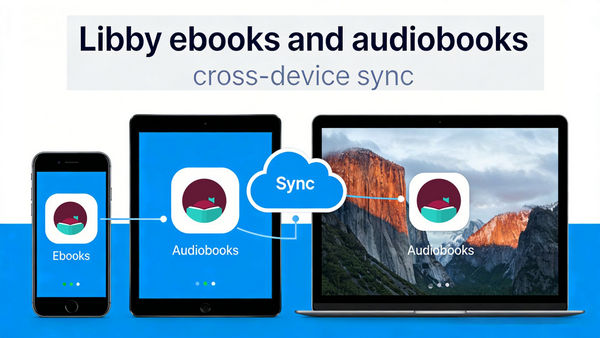
At a Glance: Comparison of Syncing Libby Across Devices Methods
If you're trying to figure out the best way to sync Libby across multiple devices, this comparison table breaks down the differences clearly.
| Feature | Method A: Sync Libby Account Across Devices | Method B: Sync Libby Shelf Across Devices | Method C: AnyLibro Converter |
|---|---|---|---|
| Primary Goal | Clone entire account | Sync progress/bookmarks | Libby ebooks & audiobooks offline on any device |
| Ease of Use | ⭐⭐⭐⭐⭐ | ⭐⭐⭐⭐ | ⭐⭐⭐⭐ |
| Device Limit | Libby-supported only | Libby-supported only | Unlimited Devices (including MP3 players, car systems, etc.) |
| Permanent? | No (Expires) | No (Expires) | Yes (Permanent) |
| Internet Required | Yes (for setup) | Yes (to update) | No (after conversion) |
| Best For | New phone setup | Daily reading/listening | Any devices |
Method A: Sync Libby Account Across Devices
If you have just upgraded to a new smartphone or added a tablet to your collection, the quickest way to set up Libby on another device is by using a Libby setup code. This official "cloning" method is a massive time-saver for heavy users with multiple library cards.
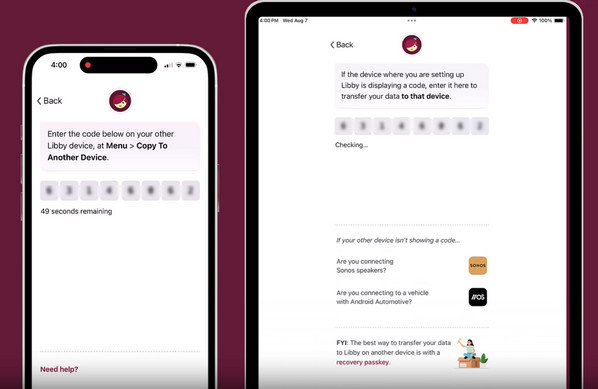
What Syncs?
- Library cards – all cards linked to your account
- Loans and holds – current checkouts and reserved titles
- Shelf and tags – bookmarks, reading lists, and notes (ebooks only)
- Reading progress – where you left off in ebooks and audiobooks
- App Settings – preferences like text size, lighting, and playback speed
Note: Highlights and notes are synced only for ebooks. Audiobook bookmarks sync across devices.
How It Works:
Step 1: On your new device, open Libby → “Welcome” screen → tap Yes if you have a library card.
Step 2: Select Recover Your Data → choose Recover With Passkey or Display Setup Code.
Step 3: On your original device, go to Menu → Copy To Another Device → enter the 8-digit Libby setup code.
Step 4: Select a library and Libby automatically clones your account, syncing all supported data.
✅ Pros
- Syncs multiple library cards at once
- Automatically transfers loans, holds, shelf, and progress
- No need to re-enter PINs or passwords
- Quick and reliable method for new devices
❌ Cons
- Setup code expires if not used promptly
- Only works on Libby-supported devices
- Highlights/notes for audiobooks do not sync
- Requires internet connection
Method B: Sync Libby Shelf Across Devices
While Method A focuses on the initial account setup, Method B is designed for your daily reading flow. Libby is built to automatically sync Libby Shelf data, ensuring that if you stop listening on your phone, you can pick up exactly where you left off on your tablet.
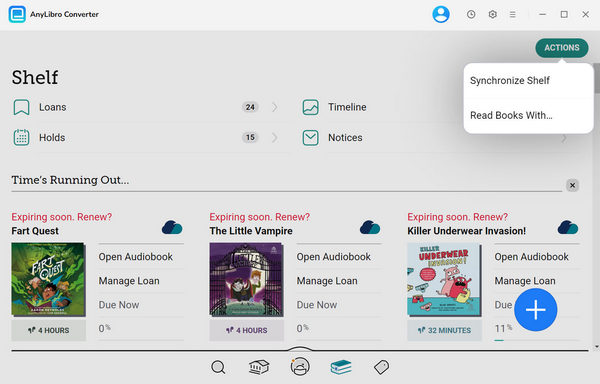
What Syncs?
- Reading progress – ebooks and audiobooks continue from where you left off
- Bookmarks – keep your current page across devices
- Loans and holds – reflect current checkouts on all devices
- Tags and lists – your custom organization remains consistent
How It Works:
Step 1: On your device, open Libby and go to Shelf in the navigation footer.
Step 2: Tap Actions → Synchronize Shelf.
Step 3: Libby will refresh and sync your loans, holds, bookmarks, and reading positions to the cloud.
Step 4: Repeat on other devices to ensure all devices are up to date.
✅ Pros
- Simple & Quick
- Ideal for switching between phone, tablet, or eReader daily
❌ Cons
- Manual Refresh Needed
- Limited to Libby-Supported Devices
- Tags, highlights, and notes may not sync for audiobooks
Method C: Download Libby Ebooks and Audiobooks Across Devices
While official methods are great for standard devices, they fall short if you want to sync Libby across multiple devices that don't support the app, such as iPods, Sony Walkman, older Kindles, USB drives, or car media systems. AnyLibro Converter solves this problem by allowing you to download Libby ebooks and audiobooks for universal access.
What Syncs?
- Libby Audiobooks – exported as high-quality MP3, M4A, or M4B files
- Libby Ebooks – exported as EPUB files compatible with Kindle, Kobo, and more
- Full Metadata – titles, authors, and high-resolution cover art remain intact
- Chapter Markers – original chapter structures are preserved for easy navigation
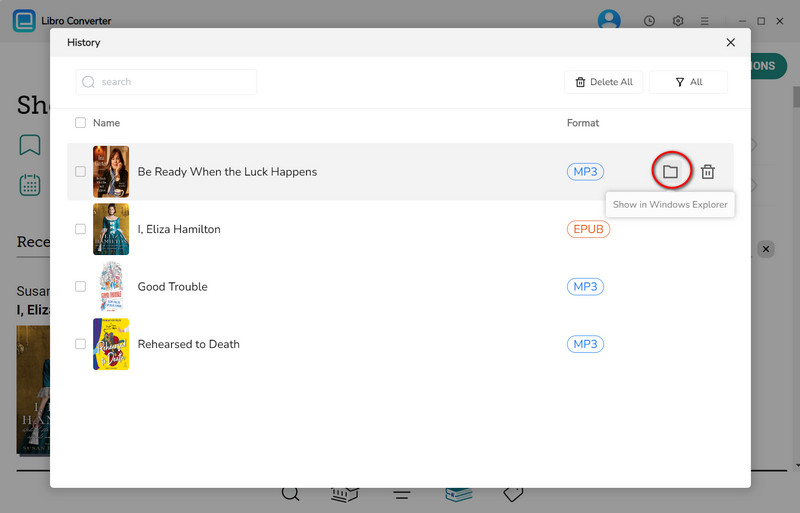
AnyLibro Converter - Best Libby Audiobook Exporters
How It Works:
Step 1: Open AnyLibro and sign in with your library card. Browse and borrow books directly within the tool.
Step 2: Select your output format (e.g., MP3 for audiobooks).
Step 3: From your Libby Shelf, select the books you want to convert and add them to AnyLibro Converter.
Step 4: Click Download to save Libby books to MP3 (audiobooks) or EPUB (ebooks).
Step 5: Access your books on any device—even those without a Libby app—and they will never expire.
✅ Pros
- No device limits – works on iPods, Kindles, car systems, and more
- Keep Libby books forever, even after loan expiration
- Preserves chapters, covers, and bookmarks for a professional experience
- Safe and reliable method for offline access
❌ Cons
- Requires installing AnyLibro Converter
Troubleshooting: Why Isn't Libby Syncing?
Even with Method A, B, or C, sometimes Libby doesn’t sync across devices as expected. It is usually due to a few common technical hiccups.
Common Reasons for Sync Failures
- Devices not connected to the internet – Libby needs an active connection to sync loans, bookmarks, and reading progress.
- Different library accounts – Make sure you’re signed into the same library card or OverDrive account on all devices.
- Outdated Libby app – Syncing features can fail if your app is not updated. Check for updates in your device’s app store.
- Shelf or loans not refreshing – Sometimes Libby requires a manual sync: go to Shelf → Actions → Synchronize Shelf.
- Setup code expired – For Method A, ensure the 8-digit setup code is entered quickly before it expires.
How to Fix It
- Always keep your devices online – Make sure your devices are connected to the internet when using Libby.
- Force a Manual Sync – On the device that isn't updating, go to Shelf → Actions → Synchronize Shelf.
- Verify Your Card – Go to Menu → Manage Cards to ensure your card hasn't expired or doesn't need to be re-verified with your library's PIN.
- The AnyLibro Workaround – If native syncing continues to fail due to local network restrictions or app bugs, use AnyLibro Converter to download the file. Once you have the MP3 or EPUB file, you are no longer dependent on Libby’s servers for "progress" updates.
FAQs About Syncing Libby Across Multiple Devices
Q1: How many devices can I sync with Libby at once?
A: Libby does not set a strict device limit for account logins. You can sync Libby across devices like your phone, tablet, and laptop using the same library card. However, most library systems limit offline downloads to 5–6 devices per title. If you exceed this limit, you may see a download error. For unlimited device access, AnyLibro Converter allows you to create standalone MP3 or EPUB files that work on any device.
Q2: Can I sync Libby across different library systems?
A: Yes. Libby supports multiple library cards. Using Method A (Setup Code) links your devices so loans from different libraries appear in one unified Shelf.
Q3: Does syncing Libby use a lot of data?
A: Syncing reading progress and bookmarks uses minimal data. Downloading full audiobooks or ebooks during sync can consume significant data, so it’s best to sync over Wi-Fi.
Q4: Can I use Libby on unsupported devices like older MP3 players or Kindle?
A: Standard syncing requires the Libby app or a modern browser. For unsupported devices, use AnyLibro Converter to download ebooks or audiobooks in MP3, M4B, or EPUB formats.
Final Verdict
Syncing Libby across devices doesn’t have to be complicated. If you're upgrading to a new phone or tablet, the Libby setup code is the fastest way to sync Libby across devices in minutes. If you’re simply switching between your phone and iPad each day, Shelf Sync keeps your reading progress, bookmarks, and loans aligned automatically.
But if you’re tired of the app's limitations—like books disappearing when the loan expires or not being able to listen on your favorite MP3 player—AnyLibro Converter is the way to go. It lets you download Libby audiobooks to MP3 and ebooks to EPUB, giving you the freedom to keep your books and listen on any device you own, without worrying about sync errors or internet connections.
Pick the method that works for your life, and get back to what really matters: enjoying your next great book.
Note: During the trial version, you can only convert and save the first 20% of each book. To unlock full access and convert entire books, you’ll need the full version.

Clara Whitman
Clara specializes in creating practical guides for book lovers and digital reading tools.
With years of experience exploring apps like Libby, Kindle, and Audible, she shares clear, step-by-step tips to help readers get the most out of their eBooks and audiobooks.
 Libby Audiobook Converter
 All-In-One Music Converter
 Spotify Music Converter
 Apple Music Converter
 YouTube Music Converter
 Amazon Music Converter
 Tidal Music Converter
 Streaming Music Recorder
 Photo Enhancer AI
 Video Enhancer AI
 Audible Audiobook Converter