


Libby Failed to Synchronize Shelf? Quick Fixes for Android, iPhone & Kindle
Have you ever opened the Libby app on your iPhone or Android and seen the message “Failed to Synchronize Shelf”? This common Libby sync issue can stop your borrowed books, reading progress, and bookmarks from updating and syncing properly across all your devices.
In this guide, we’ll explain what “Synchronize Shelf” means in Libby, why sync failures happen, and simple, quick fixes you can try in just 5 minutes to resolve Libby app sync problems. You’ll also discover a permanent fix using AnyLibro to bypass Libby synchronization errors forever and convert Libby books to EPUB or MP3 for full offline access. Restore your library and take full control now.
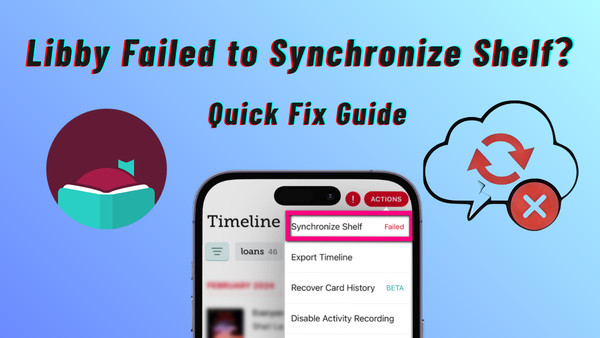
What Does Synchronize Shelf Mean in Libby
In Libby, “Synchronize Shelf” means keeping all your library data up to date and consistent across your devices. This lets you start reading on one device, like your phone, and seamlessly continue on another, such as a tablet, without losing your progress or notes.
What Gets Synchronized in Libby?
When Libby syncs your shelf, it updates:
📚 Your current loans (including eBooks, audiobooks, and magazines) and borrowed books
📖 Your reading position (so you don’t lose your page)
🔖 Bookmarks, highlights, and notes
🔄 Changes like returns or new borrows
How Does Libby Shelf Sync Work?
Libby uses a cloud-based system powered by OverDrive to store your data. Every time you open the app, it connects to the cloud and updates your shelf across devices—whether on iPhone, Android, the web, or e-readers like Kindle.
What Happens If It Fails?
If syncing doesn’t work properly, you may see the error “Libby failed to synchronize shelf”, which means your data isn’t updating between devices and your reading experience may be interrupted.
Why Does Libby Fail to Synchronize Shelf
If you're staring at a "Synchronization Failed" message, it’s usually not a random glitch. In our experience, Libby sync issues typically stem from one of the following six root causes:
- Expired Library Card Token (Most Common)
For security, your library doesn’t give Libby permanent access. Instead, it gives a temporary "digital token." If your library card expires or needs re-verification (usually every few months), the sync won’t work until you update your card. - Corrupted App Cache on iPhone or Android
Sometimes, the data saved on your phone conflicts with the data on OverDrive’s servers. This often happens after a big Libby app update. The old (stale) cache stops the app from saving new progress, so your reading position may jump back. - Network and Firewall Restrictions
If you use Libby or try to sync your shelf on a work, school, or secure public Wi-Fi, the network firewall might block Libby’s connection to the cloud. - OverDrive Server Delays
Sometimes, OverDrive’s servers are slow or under maintenance, especially during popular book releases. When this happens, your app can’t sync and shows a failure message. - Conflict Between Multiple Library Cards
If you have several library cards linked to one Libby account, a problem with one card can stop the whole shelf from syncing. Libby might have trouble checking a hold on one card, which blocks updates on the others. - App Bugs or Outdated Version
Using an outdated version of Libby or encountering temporary app bugs can cause Libby shelf sync failures.
Quick Fixes for Libby Failed to Synchronize Shelf (Restore in 5 Minutes)
If you’re seeing the error “Libby failed to synchronize shelf”, don’t worry—most Libby sync issues can be fixed in just a few minutes. Follow these quick steps to restore your shelf and get everything syncing again.
1. The Universal First Step: Manual Shelf Sync
Before adjusting settings, the quickest way to fix Libby failed to synchronize shelf is to manually trigger a sync between your device and the OverDrive cloud:
Step 1.Open the Libby app.
Step 2.Tap Shelf (the stack of books icon).
Step 3.Pull down from the top of the screen until you see a loading spinner. This manually triggers the Synchronize Shelf command.
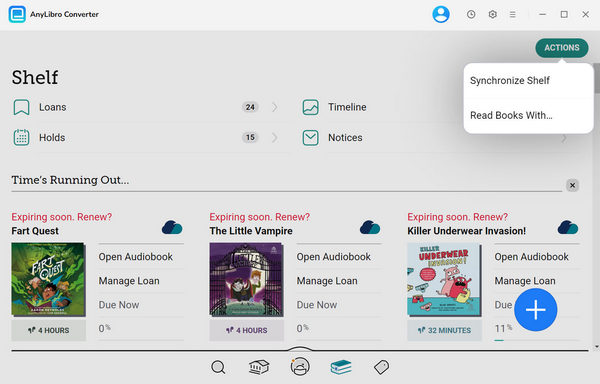
Alternative Method: If the pull-down gesture doesn't work, tap Shelf > Actions (at the top of the screen) > Synchronize Shelf. This is the official manual override to force a cloud update.
2. Quick Fixes for Libby Failed to Synchronize Shelf on iPhone (iOS)
iPhone users often experience Libby shelf sync issues due to background restrictions or outdated temporary files. Here are the most effective steps to restore syncing:
A. Re-verify Your Library Card (Most Effective)
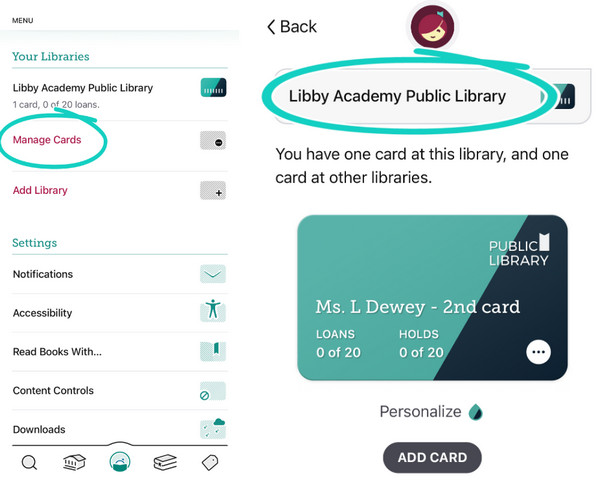
Step 1.Open Libby and tap Menu (three lines).
Step 2.Go to Manage Cards.
Step 3.Tap Actions on the card showing the error, then select Verify Card.
Step 4.Re-enter your PIN if prompted.
B. Remove & Re-add Library Card
If verifying doesn’t work, remove the card on Libby and add it again. This can resolve stubborn sync errors caused by card conflicts.
C. Check Background App Refresh
Step 1.Open Settings → General → Background App Refresh.
Step 2.Ensure it is ON for Libby. If this is off, Libby cannot update your reading progress while you switch between apps.
D. Offload and Reinstall Libby
Step 1.Open Settings → General → iPhone Storage → Libby.
Step 2.Tap Offload App. This clears the app’s cached data but keeps all your books and downloads.
Step 3.Reinstall Libby from the Home Screen to refresh the connection.
3. Quick Fixes for Libby Failed to Synchronize Shelf on Android
A. Clear Libby App Cache
Step 1.⚠️ Do not tap Clear Data unless you are prepared to log in again. Clearing the cache removes temporary files that may block shelf synchronization without affecting your downloads.
Step 2.Open Settings → Apps → Libby.
Step 3.Tap Storage & Cache → Clear Cache.
B. Disable Battery Optimization
Step 1.In the same App Info menu, tap Battery.
Step 2.Select Unrestricted. This ensures Android does not stop Libby’s background sync to save power, which can prevent shelf updates.
C. Update Google Play Services
Step 1.Ensure your system’s core communication tools are up-to-date. Libby relies on Google Play Services for secure OverDrive server tokens and proper cloud syncing.
D. Remove & Re-add Library Card
Step 1.Same as iPhone: removing and re-adding the card can fix stubborn sync errors.
4. Quick Fix for Libby Failed to Synchronize Shelf on Kindle
Steps to Refresh “Send to Kindle”
Step 1.Open Libby → Shelf → Loans.
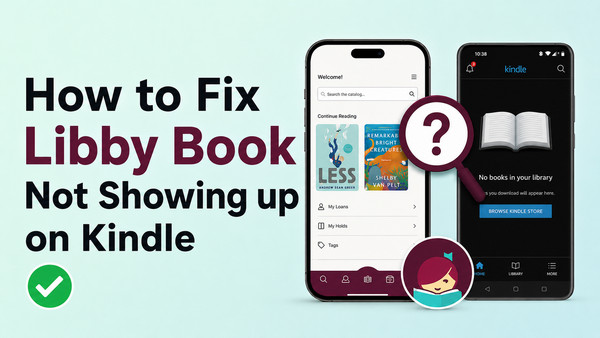
Step 2.Tap Manage Loan → Read With… and select Kindle again. This re-sends the synchronization signal to Amazon’s servers and often resolves the “missing book” or Libby failed to synchronize shelf errors instantly.
5. Check Your Download Rules
Sometimes your shelf synchronizes, but the book won't open. Ensure your Download Rules (under Shelf > Actions) aren't set to "Wi-Fi Only" if you're on cellular data. A sync isn't complete until the loan shows a "checkmark" icon instead of a "cloud" icon.
6. 💡 Expert Tip: The "Web Test"
If none of these work, visit libbyapp.com in your mobile browser. If your shelf looks correct there, the problem is your iPhone or Android app's local data. If the web version is also wrong, the issue is with your Library Card or the OverDrive server itself.
7. Advanced Recovery: Using Passkey / Setup Code
For persistent Libby failed to synchronize shelf errors that don’t resolve with the quick fixes: Before resetting, export your Tags and Timeline to prevent loss of local data. This ensures all loans, holds, bookmarks, tags, and reading progress sync correctly across devices.
Step 1.On your main device, create a Recovery Passkey or Setup Code in Libby.
Step 2.On the device with sync issues, reset Libby.
Step 3.Restore your data using the passkey/setup code.
Fix Libby Failed to Synchronize Shelf Forever with AnyLibro
Manual refreshes can temporarily fix the “Libby failed to synchronize shelf” error, but they don’t address the real problem: reliance on the unstable OverDrive cloud. AnyLibro Converter solves this permanently by downloading your Libby loans to your device, letting you read offline anytime without worrying about sync errors.
Why AnyLibro Works
AnyLibro is more than a reading app—it’s a full solution for Libby users facing sync errors. It lets you download eBooks and audiobooks directly to your device and converts them to universal formats like EPUB, MP3, and M4B. AnyLibro keeps all book info like covers and ID3 tags intact, supports fast batch downloads, and works across iPhone, Android, Kindle, Kobo, and more. With AnyLibro, your Libby loans stay accessible offline, and you won’t see “Libby failed to synchronize shelf” errors again.
AnyLibro Converter - Best Libby Audiobook Exporters
3 Simple Steps: How to Use AnyLibro Converter:
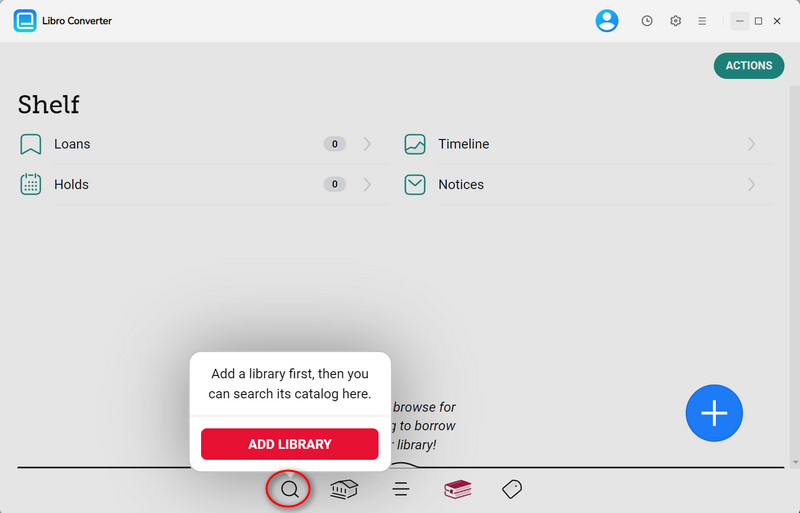
Step 1. Log In & Scan
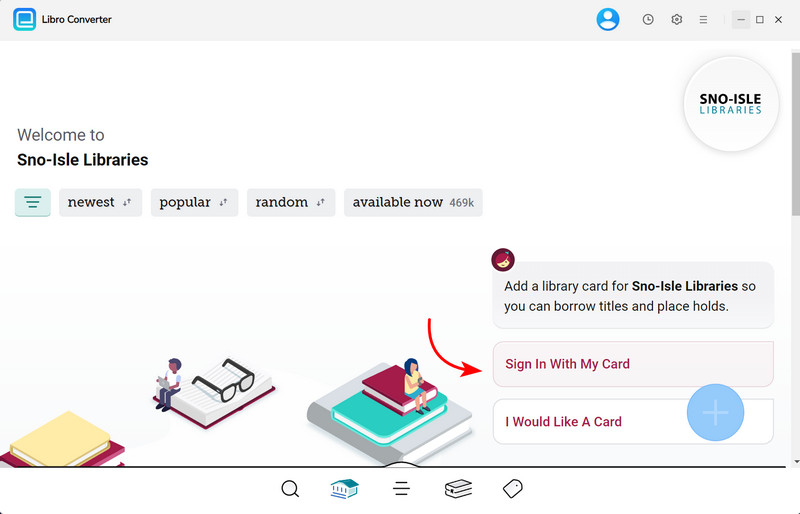
Launch AnyLibro Converter on your PC or Mac and log into your library account. The software will automatically scan your current Libby shelf and display all your active loans.
Step 2. Select & Convert
Choose the books or audiobooks that are failing to sync on your mobile device. Select your output format—EPUB for eBooks or MP3/M4B for audiobooks.
If you hit your Libby loan limit, return an older title first to free up space for the books you really want to save.
Step 3. Transfer & Read
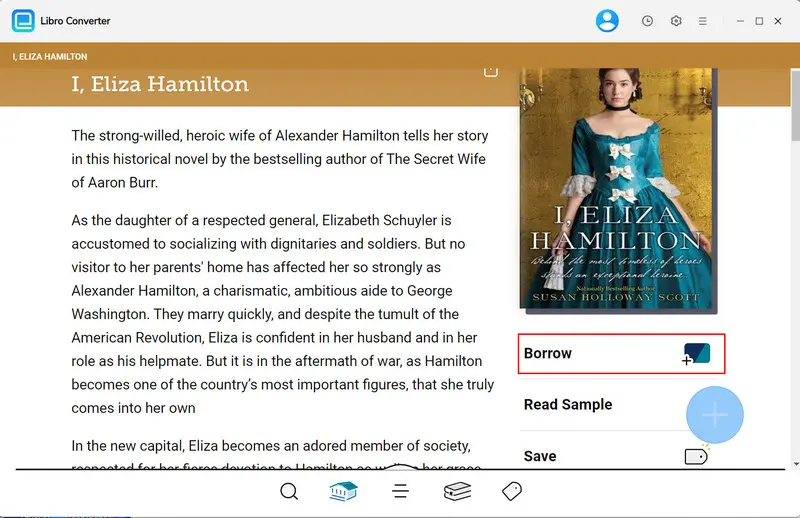
Click Convert to save the files locally. You can now transfer these "fixed" files to any device via USB or email, ensuring they are always accessible, even without an internet connection.
Libby Sync FAQ
Q1: Why do Libby sync failures happen?
A: Sync failures are often caused by expired library card tokens, app cache issues, or temporary OverDrive server delays—not just network strength.
Q2: Will manually synchronizing my shelf delete my downloaded books?
A: No. Pulling down to manually sync your shelf only updates your library data. Your downloaded eBooks and audiobooks remain intact.
Q3: I sync my shelf, but my book still won't show up on my Kindle. Why?
A: Kindle sync issues usually happen between Libby and Amazon’s servers. Go to Shelf → Loans → Manage Loan → Read With… and select Kindle again to refresh the connection.
Q4: How often does Libby automatically synchronize?
A: Libby syncs automatically in the background, but the exact frequency depends on device settings like Background App Refresh (iPhone) or battery optimization (Android).
Q5: Can I sync my reading progress if I am using AnyLibro?
A: Since AnyLibro converts Libby loans into local files (like EPUB or MP3), these files are stored locally on your device. While they won't sync via the Libby cloud, they offer 100% reliability. You can manually move the file to any device, and your reading position will remain consistent within your preferred e-reader app (like Apple Books or Moon+ Reader).
See also: Top 4 Best eReaders for Libby
Q6: Why do my "Holds" disappear after a sync?
A: Holds may temporarily disappear if the library card verification fails or if multiple cards are linked to one account. Re-verifying your card usually restores them.
Q7: Can I permanently avoid sync errors?
A: Yes. Using AnyLibro Converter, you can convert Libby loans to EPUB, MP3, M4A, or M4B files. This allows offline reading anytime, prevents “Failed to Synchronize Shelf” messages, and eliminates dependence on cloud or library tokens.
Final Verdict
A Libby sync error shouldn't stand between you and your next chapter. Most "Failed to Synchronize Shelf" issues on iPhone, Android, or Kindle can be fixed in minutes by re-verifying your library card or clearing the app cache.
However, if you want to bypass cloud glitches entirely, AnyLibro Converter is the ultimate permanent fix. By converting your Libby books to MP3, M4B, or EPUB, you can enjoy true offline freedom without ever worrying about synchronization errors again. Try the quick fixes today, or switch to AnyLibro to keep your library ready, anytime, anywhere.
Note: During the trial version, you can only convert and save the first 20% of each book. To unlock full access and convert entire books, you’ll need the full version.

Clara Whitman
Clara specializes in creating practical guides for book lovers and digital reading tools.
With years of experience exploring apps like Libby, Kindle, and Audible, she shares clear, step-by-step tips to help readers get the most out of their eBooks and audiobooks.

 Libby Audiobook Converter
 All-In-One Music Converter
 Spotify Music Converter
 Apple Music Converter
 YouTube Music Converter
 Amazon Music Converter
 Tidal Music Converter
 Streaming Music Recorder
 Photo Enhancer AI
 Video Enhancer AI
 Audible Audiobook Converter