


How to Remove a Library Card from Libby [2026]
If you’ve added a library card to Libby but no longer use it, you can remove it in just a few taps. This is common when users switch libraries, fix a wrong account, or simply want to keep their Libby app organized.
In this guide, you’ll learn exactly how to remove a library card from Libby, why the option may not appear, what happens after removal, and how to manage or re-add your library account if needed.
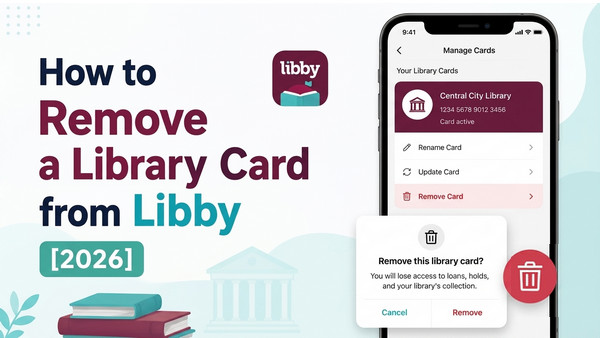
Part 1: How to Remove a Library Card from Libby
Removing a library card is handled directly inside the Libby app, which is powered by OverDrive. The process is quick, but the exact menu labels may vary slightly depending on your device or library system.
Step-by-Step: Remove a Library Card from Libby
These steps are based on the latest Libby app interface (2026 version).
Step 1. Open the Libby app on your phone or tablet.
Step 2. Tap the Menu (☰) icon in the bottom or side navigation.
Step 3. Select Manage Cards.
Step 4. Find the library card you want to remove.
Step 5. Tap Actions (or Manage Card, depending on your app version).
Step 6. Choose Remove Card.
Step 7. Confirm your action when prompted.
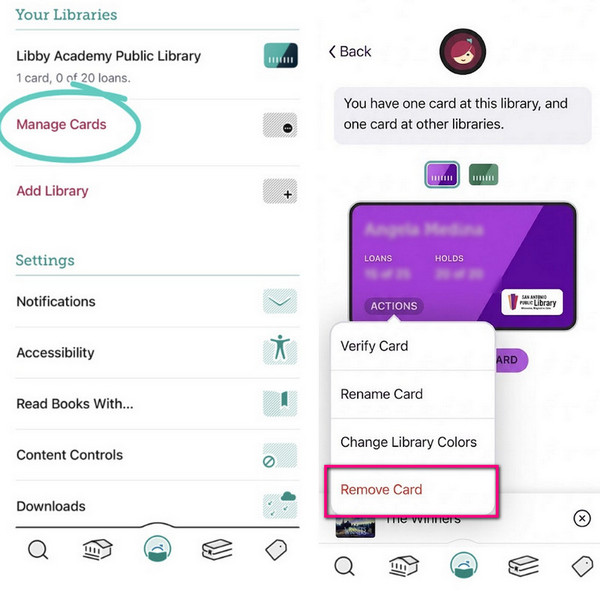
After this, the selected library will be disconnected from your Libby app.
💡 Tip: If you have multiple library cards, you’ll need to repeat the process for each one.
Part 2: Why Can’t I Remove a Library Card on Libby?
If the “Remove Card” option is missing or greyed out, it is usually due to library account conditions or app sync issues.
1. Active loans or holds
You may need to:
- * Return borrowed ebooks or audiobooks
- * Cancel active holds
- * Wait for items to finish syncing
2. Only one library card added
Libby requires at least one active library connection, so you cannot remove your only card until another is added.
3. Sync or device issues
Try:
- * Restarting the app
- * Updating Libby
- * Logging out and back in
4. Background library data still active
Some data may still be linked, such as:
- * Borrowing history sync
- * Offline downloads
- * Saved holds
5. Library system restrictions
Some libraries manage digital access differently, meaning removal rules may vary depending on:
- * Library policies
- * Account status
- * Temporary or guest cards
If the issue continues, contacting your library is usually the best option.
Part 3: What Happens After Removing a Library Card
Removing a card from Libby does not usually delete your library account. It only disconnects that library from the Libby app. Here's what happens:
| Removed from Libby | Still Managed by Library System |
|---|---|
| Library disappears from app | Membership remains active |
| Cannot browse or borrow | Borrowing history may remain |
| Holds and loans removed | Account data still stored |
Your digital library account remains active unless you cancel it directly with the library. Downloaded books may stay accessible for a short time, but you won’t be able to renew or re-download them after removal. Library data is managed by individual library systems, not the Libby app.
Part 4: How to Add a Library Card Back to Libby
If you’ve removed a library card or switched to a new device, you can easily add it back to Libby at any time. As long as your library card is still valid, your access to the library’s digital collection can be restored in just a few steps.
Step 1. Open Libby.
Step 2. Tap Add Library.
Step 3. Search for your library.
Step 4. Enter your library card number and PIN.
Step 5. Verify the card.
Once verified, your library will be added back to Libby, and you can start browsing, borrowing, and accessing your loans again.
Part 5: Bonus Tip: Keep Libby Books Forever
Many users remove a library card after their loan expires or after losing access to an out-of-state library. If you’ve already borrowed an audiobook or ebook and want to keep it for personal offline access, you’ll need to download it while the loan is still active.
AnyLibro Converter can download Libby audiobooks and ebooks into MP3, M4A, M4B, or EPUB for offline use. This allows you to listen or read without the Libby app, back up books before they expire, or transfer them to devices like USB, MP3 player, or any e-reader. It’s also helpful for longer audiobooks, so you can listen at your own pace without rushing before the loan period ends.
AnyLibro Converter
How to Download Libby Books for Keeping Forever
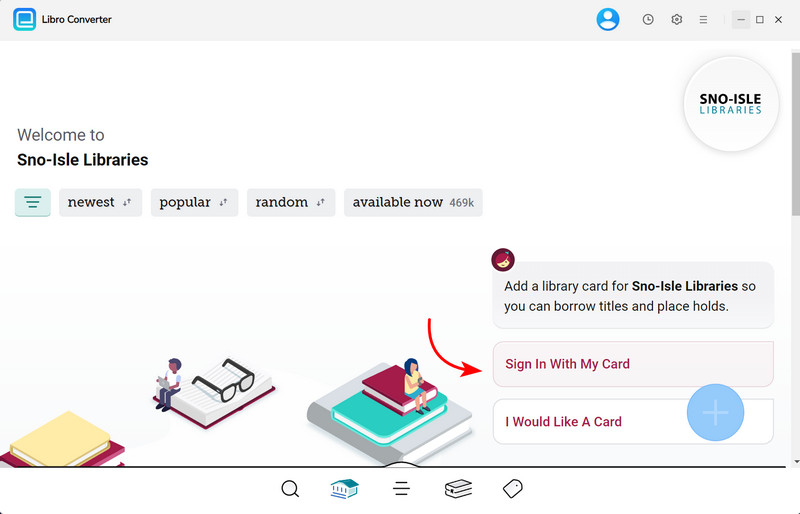
Step 1. Log in with your Libby library card
Open AnyLibro Converter and use the Search function to find your library. Select it and enter your library card details to connect your account and access your borrowed items.
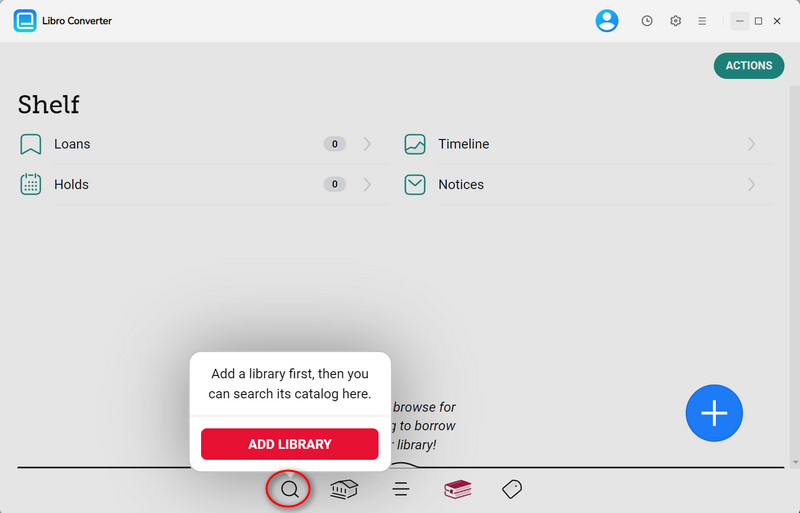
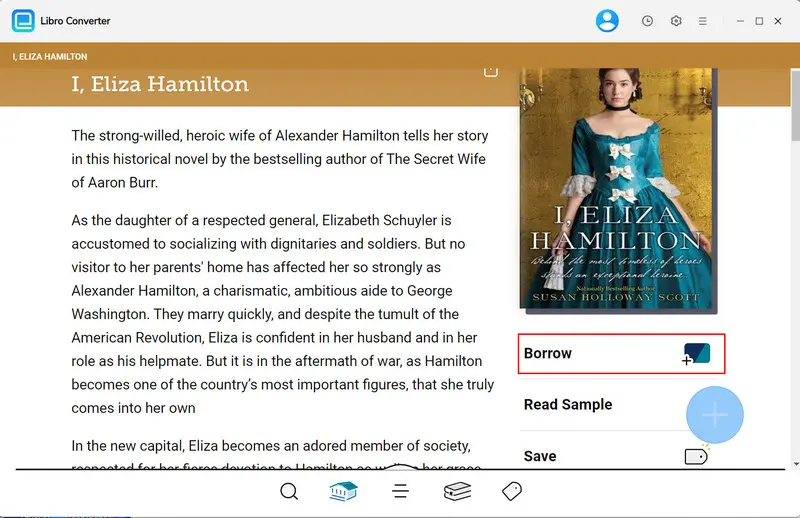
Step 2. Select Libby books to borrow
Browse available titles and add the ebooks or audiobooks you want to your list. If your library has a borrowing limit, you may need to return existing items first before adding new ones.
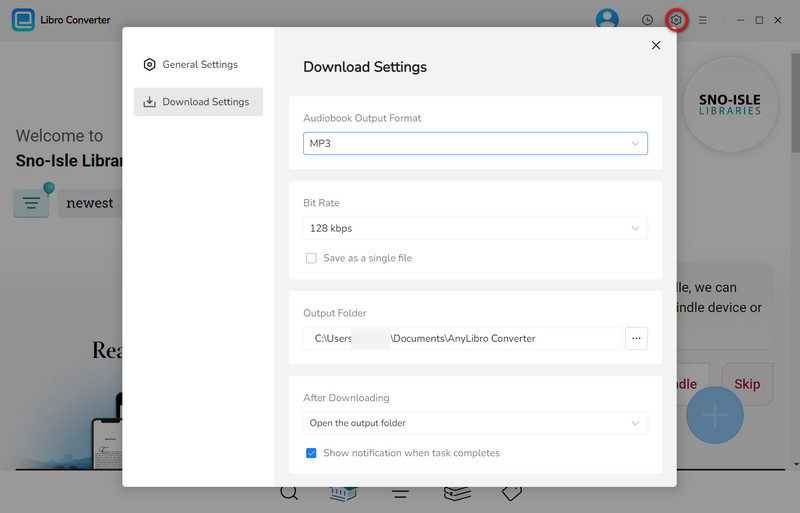
Step 3. Adjust Output Settings for Libby
Open Settings and pick the format you want for your downloads. If you’re exporting ebooks, go with EPUB, as it offers the widest compatibility across reading devices and apps.
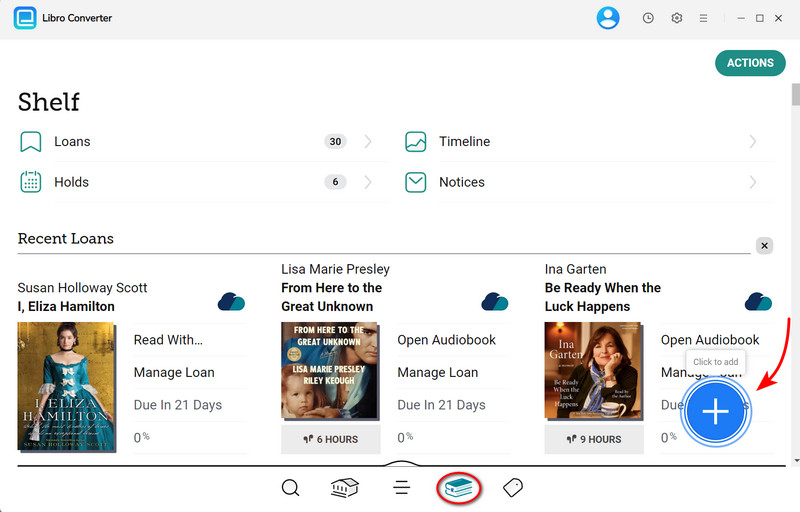
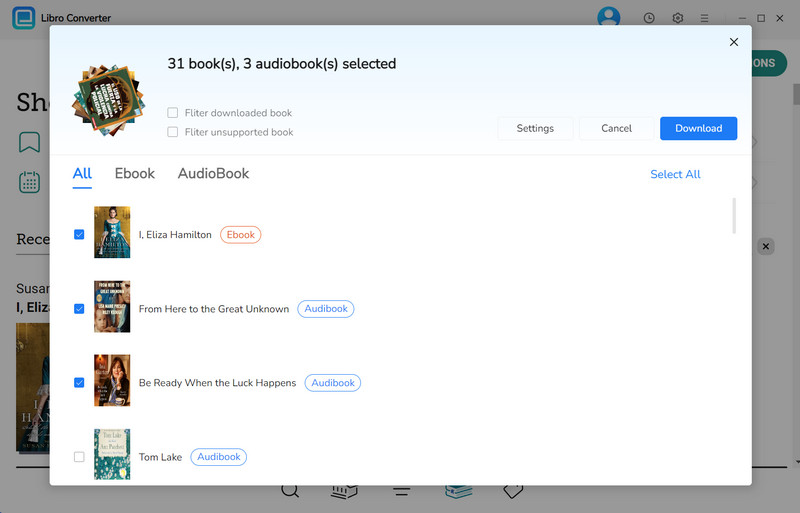
Step 4. Start to download Libby books
Open your shelf, click the "+"button to add selected titles, then press "Download". The tool will begin converting your books into the selected format automatically.
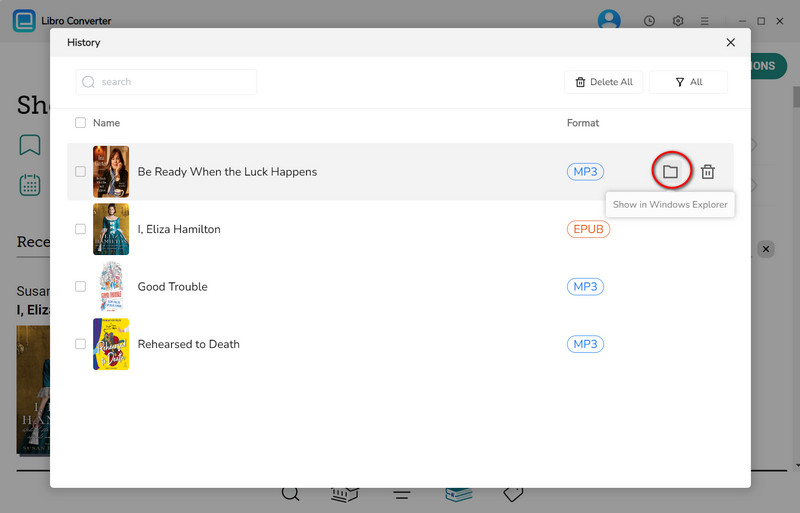
Step 5. Access your downloaded Libby audiobooks & ebooks
After conversion is complete, open the output folder on your device to find your Libby ebooks or audiobooks, ready for offline use or transfer to Kindles, Alexa, and other devices.
Part 6. FAQs about Libby Library Card
Q1: Can I use Libby without a library card?
A: No. A valid library card is required to access ebooks and audiobooks in Libby. Without one, you won’t be able to borrow or download any content.
Q2: How many library cards can I add to Libby?
A: Libby allows you to add multiple library cards. Each card is managed separately, but you can switch between them in the same app.
Q3: Can I remove a library card without deleting my Libby account?
A: Yes. Removing a library card only disconnects that specific library. Your Libby account and any other added library cards will remain unchanged.
Q4: Will removing a library card delete my borrowing history?
A: Usually no. Your borrowing history is stored by the library system, not in Libby itself, and policies may vary depending on the library.
Tip: Some users choose to use tools like AnyLibro Converter to save borrowed Libby books for offline access before removing or managing library cards.
Q5: Can I remove one library card and keep another?
A: Yes. Libby supports multiple library cards, and you can remove them individually without affecting other active cards.
The End
Removing a library card from Libby is straightforward through Menu → Manage Cards → Remove Card. If the option isn't available, check for active loans, holds, or app sync issues first.
If your goal is to keep access to a borrowed Libby audiobook or ebook after your loan ends, remember to download it while it's still checked out with AnyLibro Converter. AnyLibro Converter lets you save Libby audiobooks and ebooks for offline use by converting them into formats like MP3, M4A, M4B, or EPUB for different devices.
Note: During the trial version, you can only convert and save the first 20% of each book. To unlock full access and convert entire books, you’ll need the full version.

Clara Whitman
Clara specializes in creating practical guides for book lovers and digital reading tools.
With years of experience exploring apps like Libby, Kindle, and Audible, she shares clear, step-by-step tips to help readers get the most out of their eBooks and audiobooks.

 Libby Audiobook Converter
 All-In-One Music Converter
 Spotify Music Converter
 Apple Music Converter
 YouTube Music Converter
 Amazon Music Converter
 Tidal Music Converter
 Streaming Music Recorder
 Photo Enhancer AI
 Video Enhancer AI
 Audible Audiobook Converter