


Can You Use Libby Offline? Yes — Here's How
Yes, you can use Libby offline, but only if you download the borrowed books in advance.
Using Libby offline has many advantages. For example, it allows you to continue reading during long-haul flights, road trips, or even on cruises where the internet may be unstable or unavailable.
In this guide, we'll walk you through everything you need to know about using Libby offline. This includes how to download different types of eBooks, how to use Libby in airplane mode, and how to save your borrowed Libby books locally.
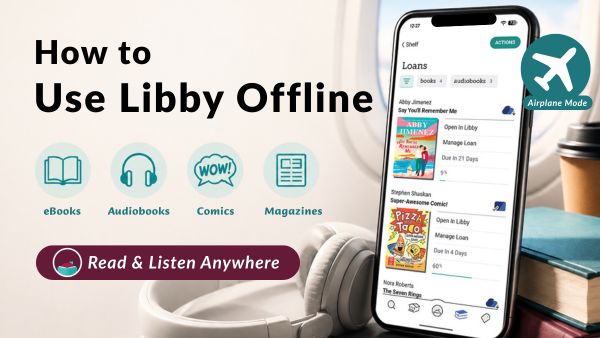
Part 1: How to Download Libby Books for Offline Use?
This part will guide you through the process of downloading different types of content in Libby, whether you want to download eBooks, audiobooks, comics, or magazines. The steps are very simple, as follows:
1.1 Download Libby eBooks, Audiobooks, Comics
Step 1. Tap the "Shelf" icon at the bottom of the screen.
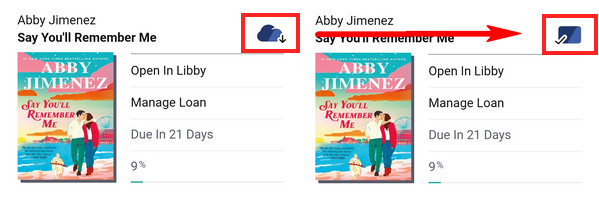
Step 2. Tap "Loans", select the book you want to download, and tap the cloud-shaped download icon. Once the download is complete, the icon will change to a card with a checkmark.
Tip: You can enable automatic Wi-Fi downloads in the Settings: Tap the "Menu" icon at the bottom of the screen > scroll down to find "Downloads" > turn on "Download Only On Wi-Fi" and set it to download "Everything".
- • The web version of Libby does not support offline reading; this feature is available only in the official Libby app.
- • Make sure the book has been successfully borrowed, has not expired, and is not on hold.
- • If you send a borrowed book to your Kindle, make sure your Kindle is connected to the internet and logged into the Amazon account that received the book, then try opening and downloading the book on your Kindle.
1.2 Download Libby Magazines
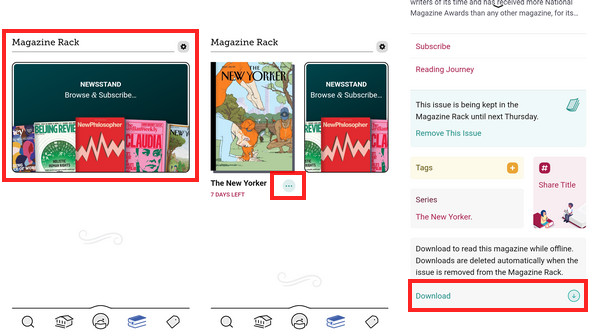
Step 1. Tap the "Shelf" icon at the bottom of the screen and scroll down to find "Magazine Rack".
Step 2. Select the magazine you want to read, then tap the three-dot menu next to it.
Step 3. Tap "Series", browse the issue you want to read and download, then tap the three-dot button next to that issue and add it to your "Magazine Rack" (you can either subscribe or keep issue for 7 days).
Step 4. Go back to "Shelf", tap the three-dot button next to the magazine, scroll down to the bottom, then tap "Download".
- • Even if Wi-Fi downloads are enabled in the settings, magazines must be downloaded manually.
- • If a magazine issue is removed from your Magazine Rack (when it has expired or been replaced by a newer issue), the download will also be deleted.
- • Magazines cannot be sent to Kindle devices. However, you can install the Libby app on Amazon Fire tablets (not Kindle e-ink devices) to read magazines online or offline.
Part 2: How to Use Libby in Airplane Mode?
Airplanes are one of the most common situations where Libby's offline mode is useful. As long as you download the titles before boarding, you can still read eBooks or listen to audiobooks even when airplane mode is enabled.
What to Do Before Your Flight?
1. Connect to Wi-Fi and Download Your Books Before Boarding.
Connect to the internet at home or in the departure lounge, open Libby, and follow the steps in Part 1 to download the titles you want to read or listen to offline in advance.
2. Make Sure the Download is Complete.
Confirm that the download icon displays as a card with a checkmark instead of just a cloud-shaped download icon.
3. Open the Book Before Going Offline.
While still connected to the internet, open the eBook or audiobook at least once. This helps ensure that all content has fully loaded and reduces the chance of playback or loading issues during the flight.
4. Enjoy Your Books During the Flight.
After enabling Airplane Mode, simply open Libby and access your downloaded titles — no need to reconnect to the internet.
- • You can't borrow new titles, renew loans, or place holds while offline. These actions require an internet connection.
- • Incomplete downloads won't work offline. If a title has not been fully downloaded in advance, you may receive a "loading failed" or "content missing" message.
- • Reading progress will not sync in real time. Updates made while offline will appear once Libby reconnects to the internet.
- Many users have found that after sending an eBook to Kindle and then enabling Airplane Mode (or disconnecting from Wi-Fi) while the book is downloading, Kindle typically does not check whether the book has expired. Therefore, as long as the device remains offline, you can often continue reading the book even after the loan period has ended.
- Keep in mind that this method may not work on every Kindle, and results may vary by device. To avoid accidentally losing access to a book, it's best to test this trick with a title you don't mind removing first.
Part 3: Libby Not Working Offline? Common Causes & Solutions
If your downloaded Libby books cannot be opened offline, try troubleshooting the issue by following the instructions in the table.
| Common Causes | Solutions |
|---|---|
| Incomplete downloads or corrupted cache files | Delete the incomplete downloads > Redownload the books. |
| Download failed or stuck in a loading state (spinning/circling) |
|
| Expired loans | Renew or borrow the titles again > Redownload the books. |
| Insufficient device storage space | Free up some storage space > Redownload the books. |
| Outdated Libby app | Update the Libby app > Redownload the books. |
| Outdated device operating system | Update your device's operating system > Redownload the books. |
Tip: Before logging out of Libby on your current device, make sure to export or back up any important data.
Bonus Tip: How to Keep Access to Your Libby Books Longer?
Now that you know how to read your borrowed eBooks and audiobooks offline using Libby. However, the most frustrating thing is that no matter how many books you borrow, they are still only "borrowed" and not truly "owned". If a book is about to expire but you haven't finished it, you'll have to borrow it and go through the long wait all over again.
In that case, you may want to try AnyLibro Converter, which allows you to download your borrowed titles to your device. You won't have to worry about loan periods and can read them completely offline.
AnyLibro Converter
Steps for Downloading Libby Books Using AnyLibro
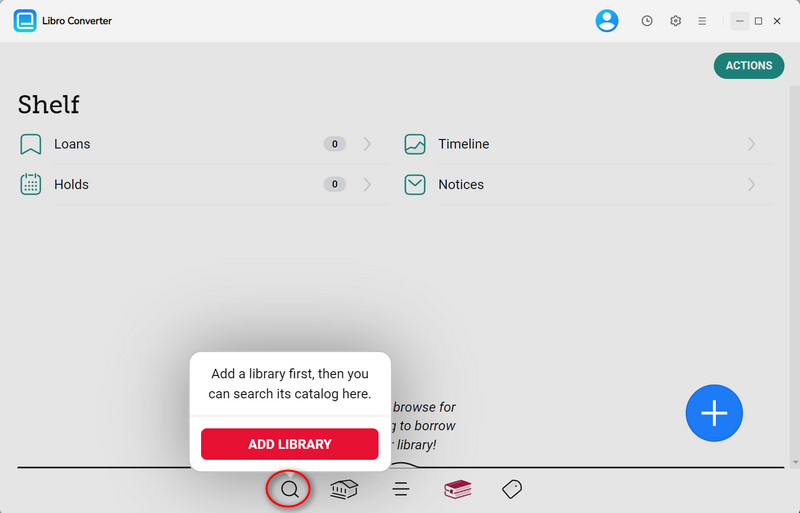
Step 1.Download and install AnyLibro Converter on your computer. Next, open it and click the search icon at the bottom. Enter your local library's name and log in with your library card.
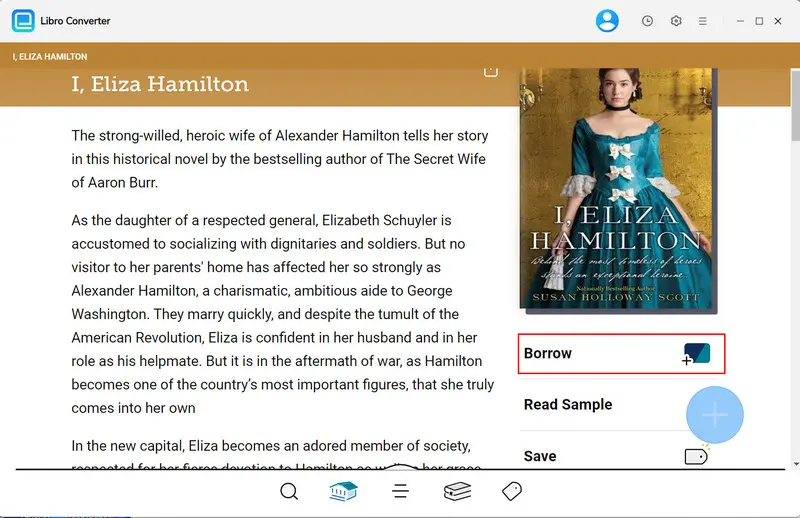
Step 2.Search for the eBooks/Audiobooks you want to read and download, then borrow them.
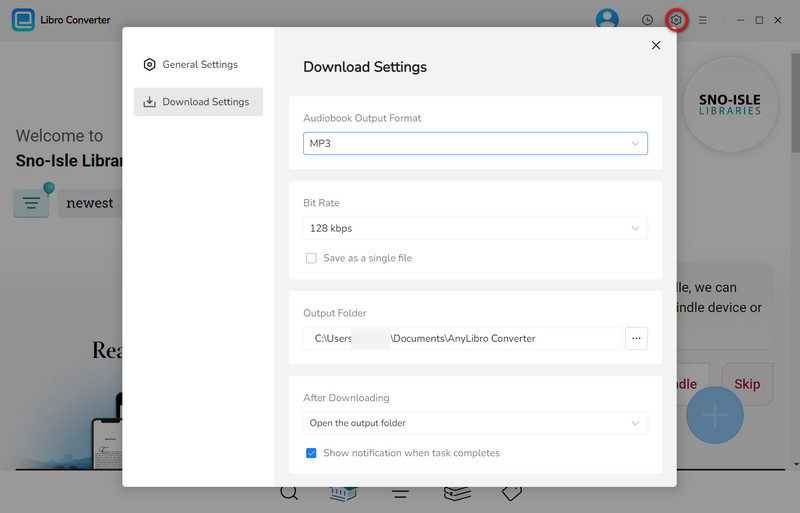
Step 3.Click the gear icon in the upper-right corner to open Settings. Select the output format and choose the output folder.
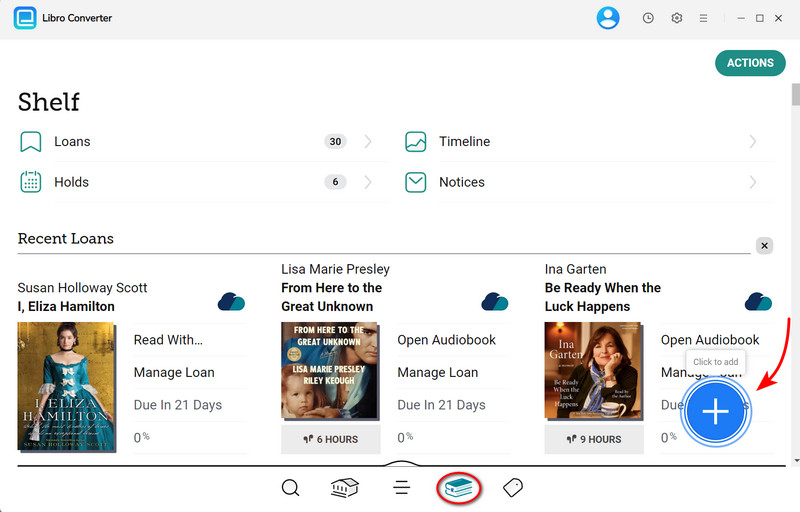
Step 4.Click the book icon to go to the Shelf. Next, click the floating "+" button to add the eBooks/audiobooks to the conversion queue.
Step 5.Click the "Download" button to begin converting these eBooks/audiobooks.
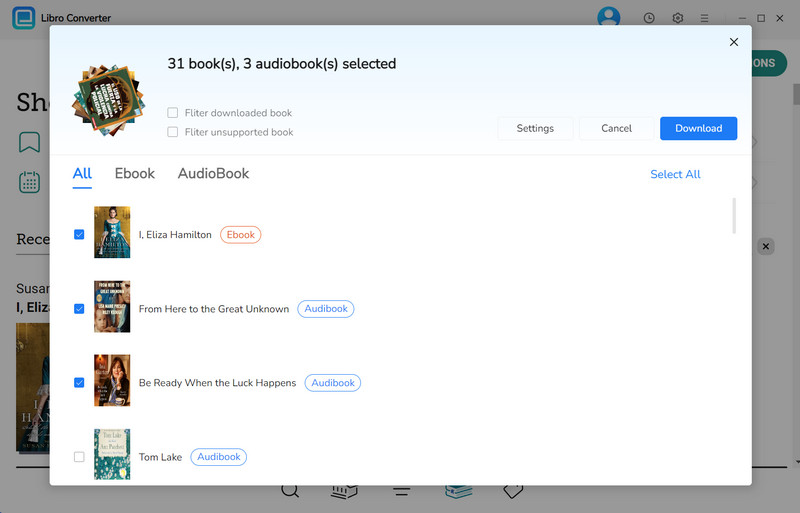
Step 6.After conversion is complete, click the clock icon in the upper-right corner to view the finished downloads. Hover over a downloaded file and click the folder icon to navigate to the output folder.
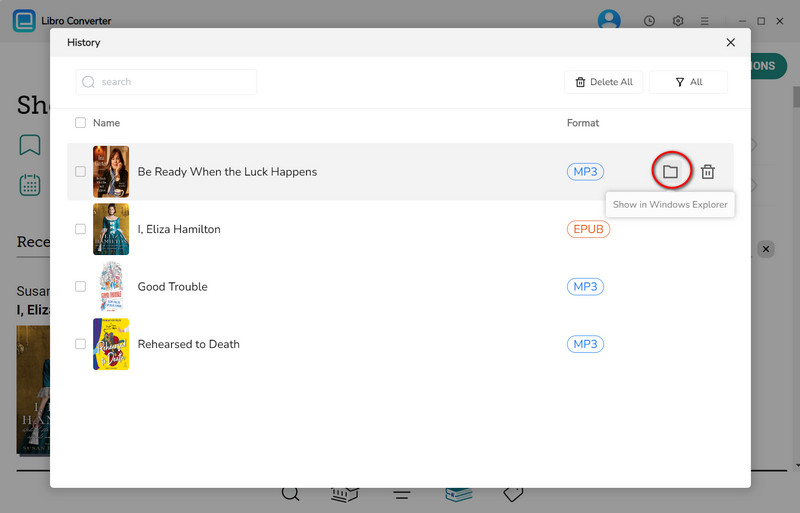
After locating the downloaded eBook or audiobook files, you can transfer them to any device you want for reading or listening. You can even transfer them to a USB drive and plug it into your car, making long road trips much more enjoyable.
YouTube Video: How to Convert Libby Audiobooks to MP3
FAQs about Using Libby Offline
Q1. How long can you keep a downloaded Libby book?
Generally, Libby offers three loan periods: 7 days, 14 days, or 21 days. Books are automatically returned upon expiration, and downloaded content is also automatically deleted.
If you're concerned about loan periods, try using AnyLibro Converter to download your favorite eBooks and audiobooks for long-term storage and offline access.
Q2. Can I use Libby offline on a computer?
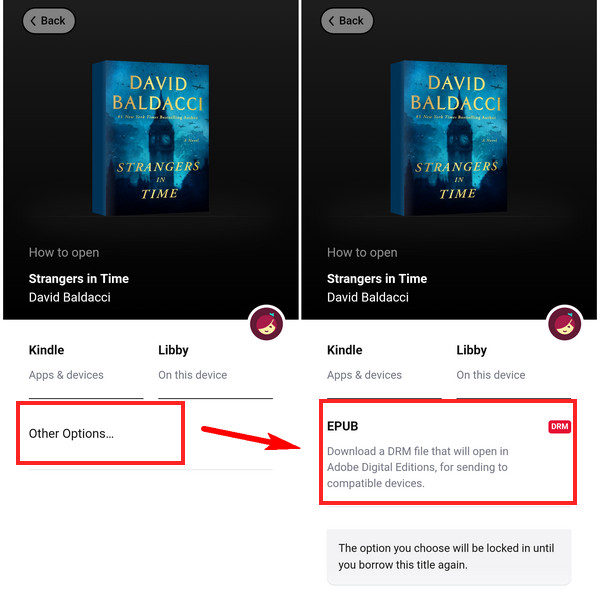
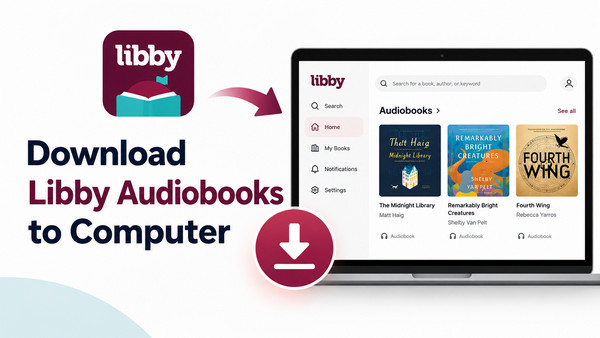
Yes, you can download Libby books to your computer for offline reading using Adobe Digital Editions (ADE). Follow these steps:
Step 1.Open the Libby app on your web browser, click "Shelf", and select the book you've borrowed.
Step 2.Click "Read With...", then select "Other Options" and choose EPUB/PDF (format options may vary by book). This will download an .acsm file to your computer.
Step 3.Drag and drop the .acsm file into Adobe Digital Editions. ADE will automatically download the full eBook to your computer for offline reading. You can also transfer it to other supported e-readers.
Note: Once completed, you cannot transfer the same borrowed book to Kindle. Additionally, the book will still be automatically returned once it expires. For permanent offline access, use AnyLibro to download Libby books.
Q3. Can one book be downloaded on multiple devices for offline use?
Yes, you can read Libby books on multiple devices — as long as the device has the Libby app installed and is signed in with the same library card account. Each device can download the book independently for offline reading.
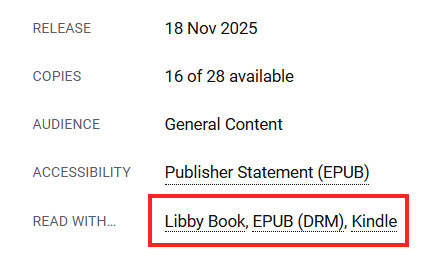
However, as mentioned in Question 2, once a book is sent to Kindle or Adobe Digital Editions for reading, it cannot be transferred again into another format. Kindle and EPUB formats are mutually exclusive; once one format has been generated, the system won't allow you to convert the same loan to the other format. You can check the book's details page to see which formats are available before downloading.
Wrapping It Up
So far, using Libby offline should not have been too difficult for you. Whether it's downloading books in various formats, using Libby correctly in airplane mode, or fixing issues where downloaded books cannot be opened offline. In short, the most frustrating part of using Libby is undoubtedly the loan period.
At the same time, AnyLibro will solve this "frustration" for you, allowing you to keep your favorite books for the long term, so you can read them anytime.
Note: During the trial version, you can only convert and save the first 20% of each book. To unlock full access and convert entire books, you’ll need the full version.

Clara Whitman
Clara specializes in creating practical guides for book lovers and digital reading tools.
With years of experience exploring apps like Libby, Kindle, and Audible, she shares clear, step-by-step tips to help readers get the most out of their eBooks and audiobooks.
 Libby Audiobook Converter
 All-In-One Music Converter
 Spotify Music Converter
 Apple Music Converter
 YouTube Music Converter
 Amazon Music Converter
 Tidal Music Converter
 Streaming Music Recorder
 Photo Enhancer AI
 Video Enhancer AI
 Audible Audiobook Converter