


How to Export Libby Data: Reading History, Highlights & Tags
Have you ever switched to a new device and noticed that your Libby reading history, tags, or bookmarks were missing? Maybe some of your reading progress, bookmarks, or other information seemed to be missing. Or perhaps you've wondered what happens to your reading history once a borrowed book expires.
In this guide, you'll learn how to export Libby data so you don't lose track of your reading history, bookmarks, notes, and other valuable information. We'll also show you how to back up, sync and recover your data to ensure you don't lose anything when switching devices, while sharing a practical tip for keeping your favorite Libby books on your device even after they've expired.
Part 1: Export Your Libby Data (Three Essential Exports)
Libby supports three types of data exports: book information, borrowing history, and reading notes. This includes book titles, authors, publishers, borrowing and hold records, the library where the book is held, as well as your highlights, bookmarks, annotations, notes, and their corresponding locations within the book.
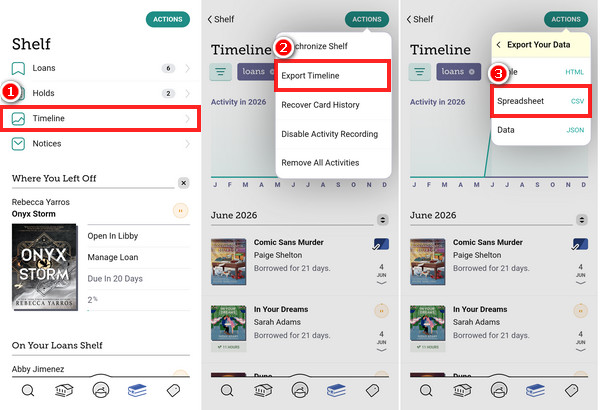
1.1 Export Your Reading History (Timeline)
Libby reading history (known as the Timeline) keeps a complete record of your borrowing activity, including loans, renewals, holds, and returns. By exporting your Timeline, you can access detailed reading data that can be useful for tracking your annual reading statistics, importing your reading history into Goodreads, or simply keeping a personal archive of the books you've read.
Steps to Export Your Libby Reading History:
Step 1.Tap the "Shelf" icon at the bottom of the screen, then select "Timeline". Use the "Filter" option to choose the specific records you want to export.
Step 2.Tap "Actions" in the upper-right corner and select "Export Timeline".
Step 3.Choose "Spreadsheet" as the export format, then download the file to your device.
Note: If your Timeline data is incomplete, it may be due to a system update, an unlinked library card, or library system maintenance. Before exporting your Timeline data, click "Action" > "Recover Card History" to sync and retrieve your complete reading history.
1.2 Export Libby Tags and Reading Lists
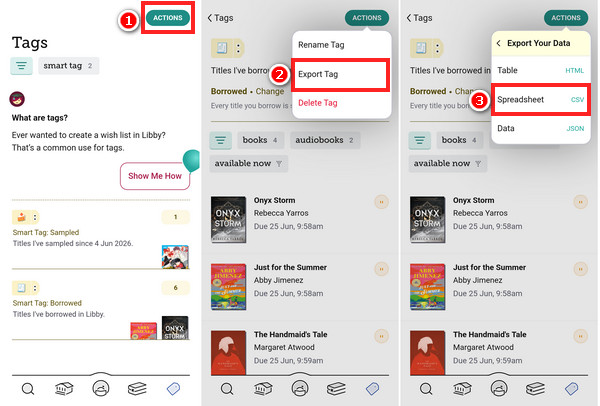
Tags are one of Libby's most underrated features. You can create tags to organize your reading list — such as "Want to Read", "To Be Read", and "Unfinished". You can add these tags to any title — even those you haven't borrowed yet.
Steps to Export Libby Tags and Reading Lists:
Step 1.Tap the "Tag" icon at the bottom of the screen, then choose the tag you want to export.
Step 2.Tap "Actions" in the upper-right corner and select "Export Tag".
Step 3.Select "Spreadsheet" as the export format, then choose "Titles" to download the file to your device.
1.3 Export Highlights, Notes, and Bookmarks
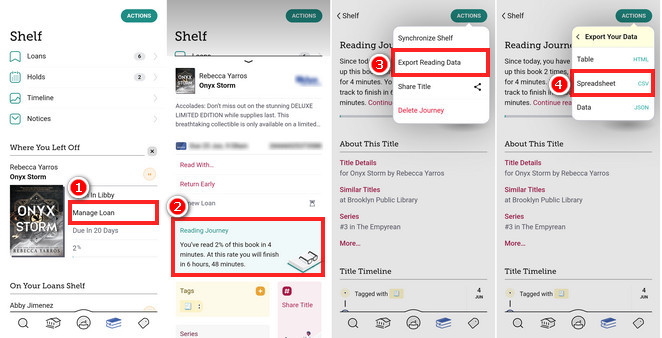
If you like taking notes or highlighting passages while reading, you'll be glad to know that Libby lets you export your notes, highlights, and bookmarks — but there's one catch: you have to export them one book at a time, as bulk exporting for multiple titles is not supported.
Steps to Export Highlights, Notes, and Bookmarks:
Step 1.Tap the "Shelf" icon at the bottom of the screen, and select the book. Then tap "Manage Loan".
Step 2.Tap "Reading Journey", then tap "Actions" in the upper-right corner and select "Export Reading Data".
Step 3.Select "Spreadsheet", then choose "Reading journey"/ "Highlight"/ "Bookmarks"/ "Circulation" to download the file to your device.
Note: If you select "Read with Kindle" to send the title to your Kindle, your reading data will be synced to your Amazon Kindle account and can be accessed directly on your Kindle device, app, or the website.
Part 2: How to Back Up, Sync, and Recover Your Libby Data
While exporting Libby data is useful, it's even more important to ensure that your reading history, tags, and highlights are safely backed up. This helps prevent data loss when switching devices, reinstalling the app, or resolving sync issues. Therefore, this part will be divided into three subsections to explain in detail how to back up, sync, and recover Libby data on a new device.
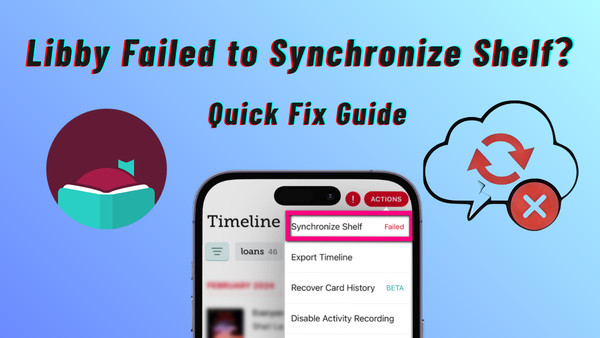
2.1 Sync Your Shelf to Update Reading Data
If your reading history, tags, and other information aren't fully displayed on your new device — or if some data is missing, don't worry! By default, Libby data is stored on your primary device, so it may not automatically sync to your new device. In this case, please sync your Shelf manually.
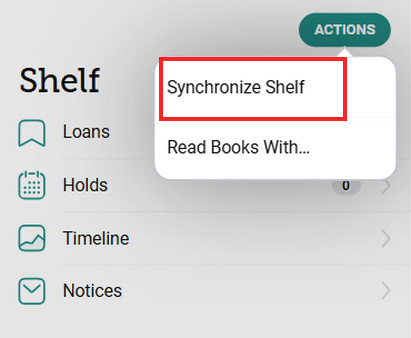
Steps to Sync Your Shelf:
Step 1.Tap "Shelf" at the bottom of the screen.
Step 2.Tap "Actions" in the top-right corner.
Step 3.Select "Synchronize Shelf", then try exporting your data again.
2.2 Create a Recovery Passkey to Back Up Your Data
However, even after syncing your library, data may still fail to sync properly. Therefore, before switching to a new device, create a Recovery Passkey on your primary device to back up your data.
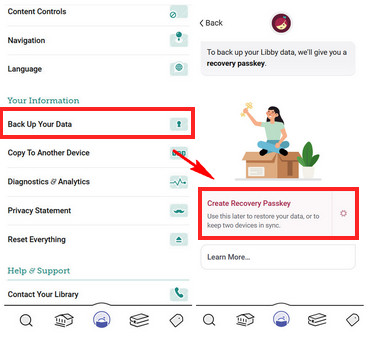
Steps to Create a Recovery Passkey:
Step 1.On your primary device, tap the "Menu" icon at the bottom of the screen.
Step 2.Scroll down and find "Back Up Your Data".
Step 3.Tap "Create Recovery Passkey".
Step 4.Follow the prompts to create the passkey using Face ID, Touch ID, a PIN, or another method.
Note: Recovery passkeys can be created in Libby version 7.0 or higher on devices running Android 9+, iOS 17+, and some desktop devices.
2.3 Recover and Sync Libby Data on a New Device
Once you've created a Recovery Passkey on your primary device, you can use it to sign in on your new device. If you haven't created a Recovery Passkey, you can still recover your data using a Setup Code.
Steps to Recover and Sync Data:
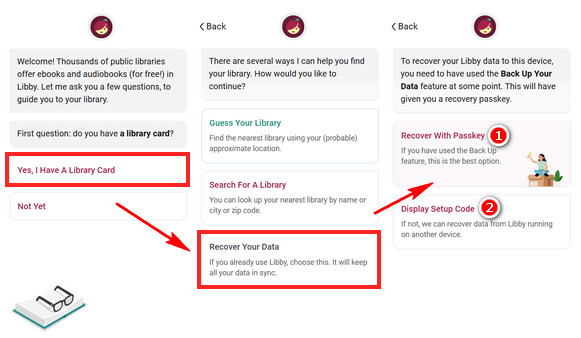
Step 1.Open Libby on your new device and tap "Add Library".
Step 2.Tap "Yes, I Have A Library Card", then select "Recover Your Data".
Step 3.Choose one of the following methods:
- A. Tap "Recover With Passkey", then follow the prompts to verify your password and recover your data.
- B. Tap "Display Setup Code" on the new device. Then, on your primary device, tap "Copy To Another Device" and enter the 8-digit Setup Code.
Note: If you're already logged in with your library card on the new device but your loans, holds, or tags are still not syncing with your primary device, tap the "Menu" icon at the bottom of the screen on the new device > "Reset Everything", then follow the steps above again.
Part 3: How to Keep Reading After Your Libby Loan Expires
Even if you've successfully exported or backed up your Libby data, the bigger concern is that you can't keep the book itself. Many users face long wait times to borrow popular eBooks or audiobooks, and the loan period may expire before they finish reading or listening. In most libraries, Libby's maximum loan period is typically 21 days. Once a loan expires, you will lose access to the title, which can disrupt your future reading plans.
If you're concerned about loan periods, consider using AnyLibro Converter. It allows you to download borrowed Libby eBooks as EPUB files and save audiobooks in MP3, M4A, or M4B formats, enabling you to continue reading or listening even without an internet connection.
AnyLibro Converter
Steps to Download Libby Books After Your Libby Loan Expires
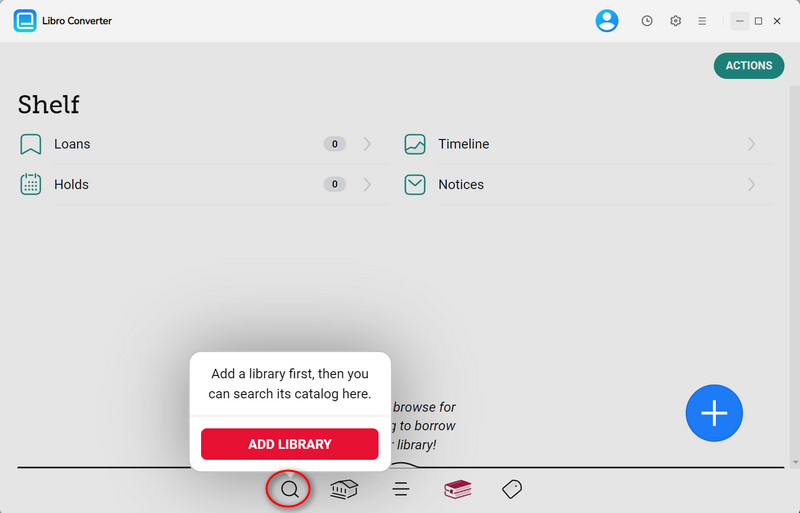
Step 1.Download and Launch AnyLibro Converter on your computer. Then, click the search icon at the bottom to search for your library, and log in using your library card.
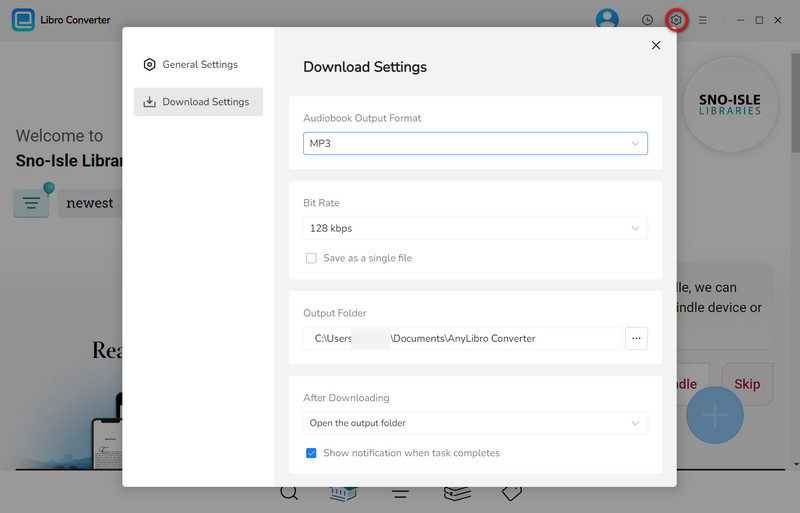
Step 2.Click the gear icon in the upper-right corner to open Settings. Choose the output format, bit rate and output folder as needed.
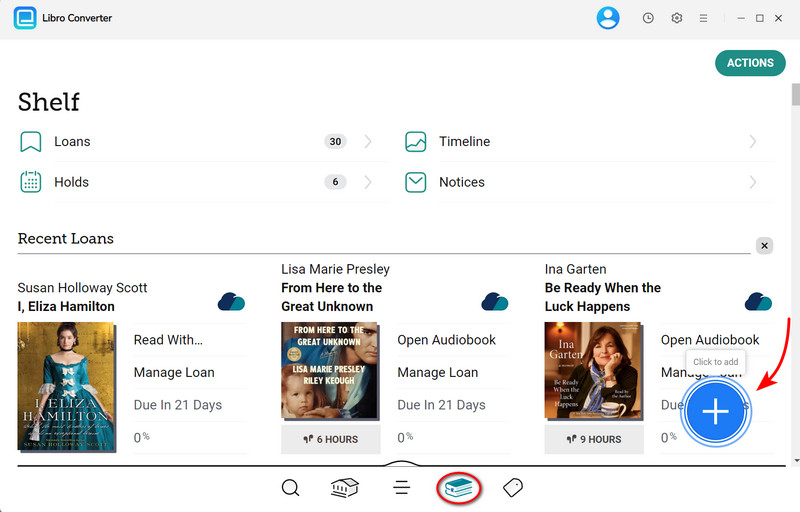
Step 3.Go to Shelf, click the floating "+" button, and AnyLibro will load the eBooks/audiobooks you have borrowed.
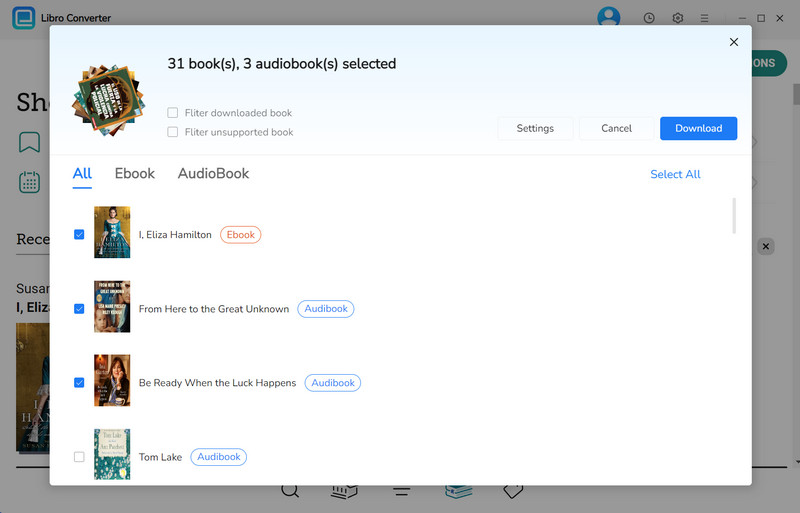
Step 4.Check the boxes next to the eBooks/audiobooks you want to download. Then, click the "Download" button to begin converting your selected eBooks/audiobooks.
Step 5.Once conversion is complete, click the clock icon in the top-right corner to view finished downloads. Hover over a file and click the folder icon to open the output folder.
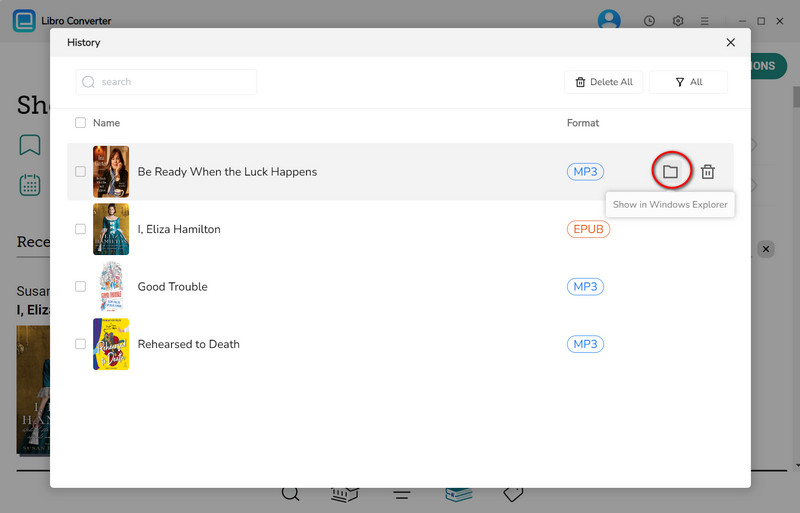
Although AnyLibro cannot export or recover your Libby data, you can save the downloaded eBook files to Calibre or e-readers for offline reading, highlighting, and note-taking. Even if the library loan period expires, you can still access the saved books. At the same time, this helps prevent books from becoming inaccessible due to data loss, ensuring your personal library is always available.
FAQs about Exporting Libby Data
Q1. Can Libby generate reading statistics or export reports?
A: No. Libby's data export feature only exports raw data — either as CSV files or web-based tables. However, you can import this exported data into third-party platforms to track your reading statistics or generate reports (such as StoryGraph and Goodreads).
Q2. Will My Libby Reading History Be Saved Forever?
A: Not necessarily. In fact, your Libby reading history is linked to your library, which may have different privacy policies. Some borrowing records may not be retained indefinitely. Therefore, to avoid losing important records, it's a good idea to periodically export your Libby data and keep a personal backup.
Q3. Will I lose my notes, highlights, or bookmarks when a Libby book expires?
A: Usually no. When a borrowed book expires or is returned, your notes, highlights, and bookmarks are typically preserved in your Libby account. If you borrow the same title again later, it will reappear there. However, be sure to export your Libby data periodically.
Q4. What happens to my data if I remove a library card from Libby?
A: Removing the card from Libby will prevent you from accessing this data. Therefore, ensure you back up your data following the steps in Part 2 before removing it to avoid losing access to data you may need later.
Q5. Can I export data from multiple library cards at once?
A: No. Libby does not currently support exporting data from all library cards simultaneously. If you use multiple library cards, you will need to export the data for each card individually
Wrapping It Up
By following this guide, you should have a clear understanding of how to export and back up your Libby data, including your reading history, tags, notes, highlights, and bookmarks. Whether you want to preserve your cherished reading records or seamlessly recover your data after switching devices, regular backups are a great idea.
If you also wish to keep your borrowed eBooks and audiobooks long-term, AnyLibro can help you save these books locally for easy collection, management, and on-demand access, making your digital library more complete and flexible.
Note: During the trial version, you can only convert and save the first 20% of each book. To unlock full access and convert entire books, you’ll need the full version.

Clara Whitman
Clara specializes in creating practical guides for book lovers and digital reading tools.
With years of experience exploring apps like Libby, Kindle, and Audible, she shares clear, step-by-step tips to help readers get the most out of their eBooks and audiobooks.

 Libby Audiobook Converter
 All-In-One Music Converter
 Spotify Music Converter
 Apple Music Converter
 YouTube Music Converter
 Amazon Music Converter
 Tidal Music Converter
 Streaming Music Recorder
 Photo Enhancer AI
 Video Enhancer AI
 Audible Audiobook Converter