


How to Read Libby Ebooks with Kindle
Wondering how to read your favorite ebooks from Libby with Kindle devices? This post has covered all!
With just a library card and a compatible Kindle, you can borrow bestsellers and classics for free, and read them in a distraction-free reading vibe. For someone who is struggling to read Libby on Kindle, this comprehensive tutorial has sorted it out. We'll go through detailed instructions for reading Libby ebooks on an e-reader (Kindle Paperwhite) and Kindle Fire devices. Also, you'll learn a handy workaround to download Libby books for offline reading on Kindle and any other device.
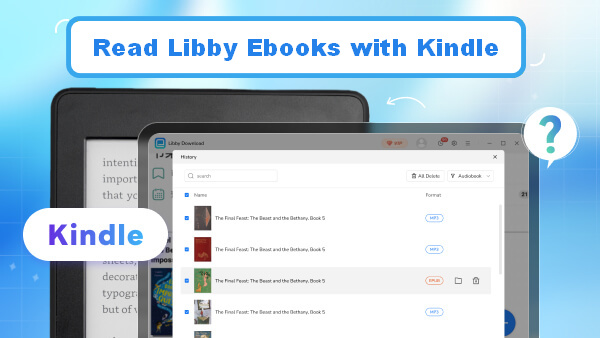
Part 1: How to Read Libby Ebooks on Kindle Fire/Fire Tablets
The Kindle models (such as Kindle Fire, Kindle Fire HD, and Kindle Fire Tablet) support getting the Libby app installed directly. So you can read Libby ebooks without a third-party access.
Method 1: Install and Read with Libby
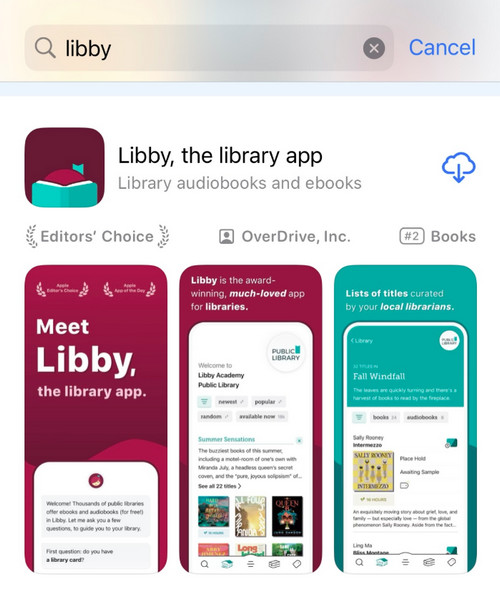
Step 1. On your Kindle Fire, open the Amazon Appstore, search for, and install the Libby app.
Step 2. Get the library card signed in on the Libby app.
Step 3. Now find, borrow, and read ebooks directly on the Fire device.
Method 2: Read Ebook with the Libby APK (if unavailable in the App Store)
Step 1. Download the Libby APK from a trusted source.
Step 2. Open your device, enable "Install unknown apps" by clicking Settings → Security → Install unknown appss → Chrome (or other browser) → Allow from this source.
Step 3. Back to Downloads, open the Libby APK files and Install it.
Step 4. Start the Libby app. Simply borrow e-books and audiobooks as usual.

Part 2: How to Read Libby with Kindle E-Reader (Kindle Paperwhite, Oasis, etc.)
Currently, the Libby app cannot be directly installed on a Kindle Paperwhite, Kindle Oasis, Kindle Scribe, or any other Kindle e-reader. But you can send and access your Libby ebooks via the Amazon website.
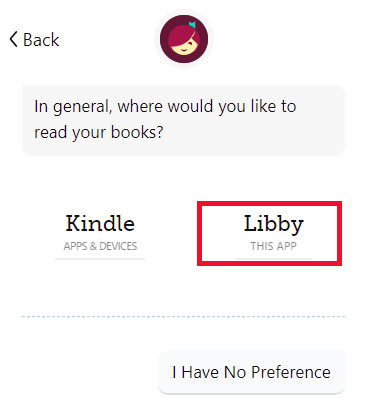
Step 1. Go to the App Store (Google Play/Amazon App Store), download and install the Libby app on your mobile, tablet, or computer (Or directly visit the online website).
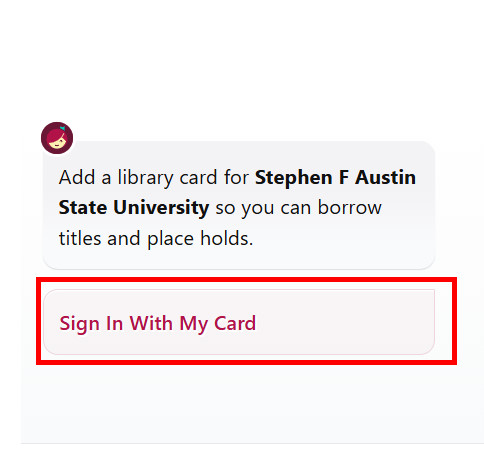
Step 2. Check the option of "I have a card", then click "Sign in with My Card" and enter your card credentials.
Step 3. In the search box, input the ebook name, author, or other keywords. Locate your desired ebook, click on the "Borrow" (or "Place Hold") button and choose a lending period.
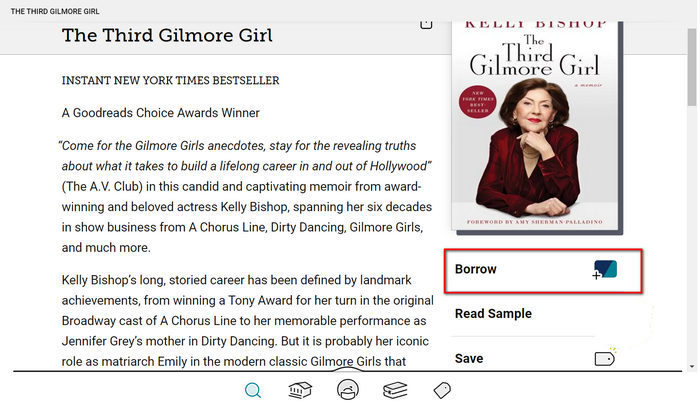
Step 4. Log in to your Amazon account connected to your Kindle Paperwhite on your device.
Step 5. Go to the Libby's Shelf > Loans, and you can see the borrowed ebook. Here select "Read with Kindle".
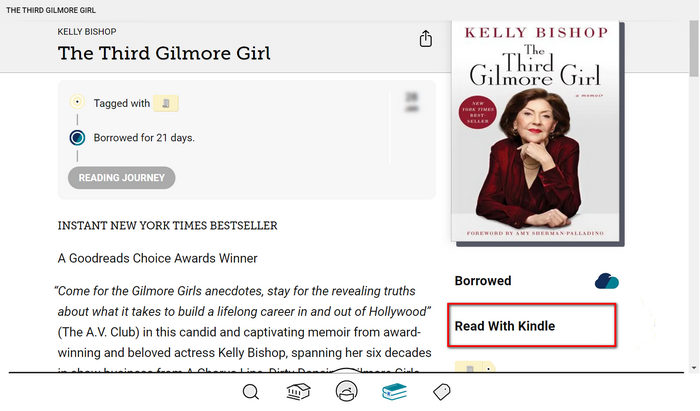
Step 6. You'll be directed to Amazon's website. Here, click the "Get Library Book" button and complete the ebook transfers to your Kindle Paperwhite or other e-reader.
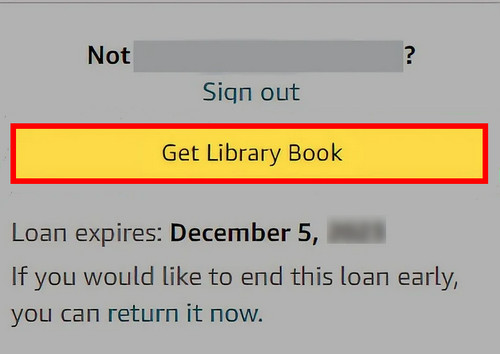
Step 7. Make sure your Paperwhite is connected to a stable Wi-Fi. The Libby ebook will be synced and shown in the Library.
Part 3: Extra Tricks: Download Libby Ebooks to Kindle Devices
Generally speaking, you can read the book offline after it is sent and downloaded on your your Kindle. However, not all Libby titles are compatible with Kindle devices. Some audiobooks and eBook formats are encrypted by Libby, thus accessible only within the app or platform. Worry less; here comes AnyLibro Converter that downloads Libby eBooks to EPUB, so that you can enjoy Libby eBooks on Kindle and other devices.
AnyLibro Converter flexibly converts Libby audiobooks to MP3, M4A, and M4B formats, and exports Libby eBooks as EPUB files. Featuring an advanced conversion core, this Libby eBook converter retains the lossless sound quality, full chapter, and ID3 metadata, letting you get the entire book at once and listen to it anywhere. With it, you're free to transfer Libby books to any Kindle device, compatible eReaders for offline access.
AnyLibro Converter
How to Download Libby Ebooks for Offline Reading
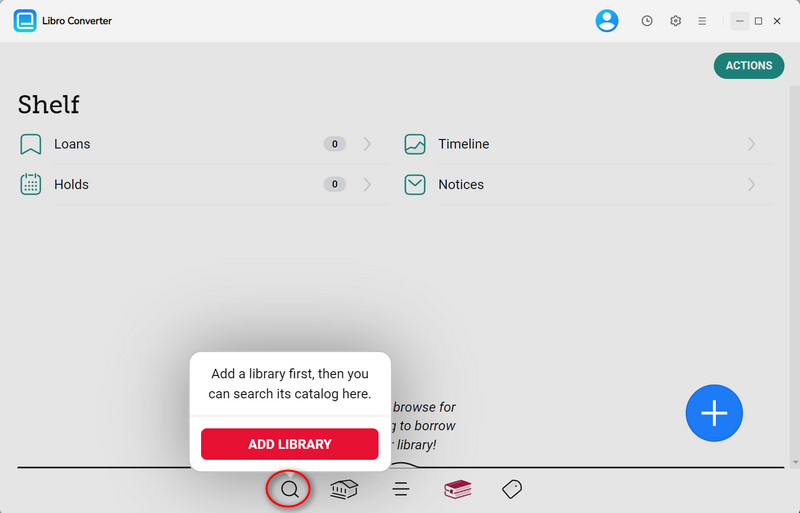
Step 1. Add Your Library & Card
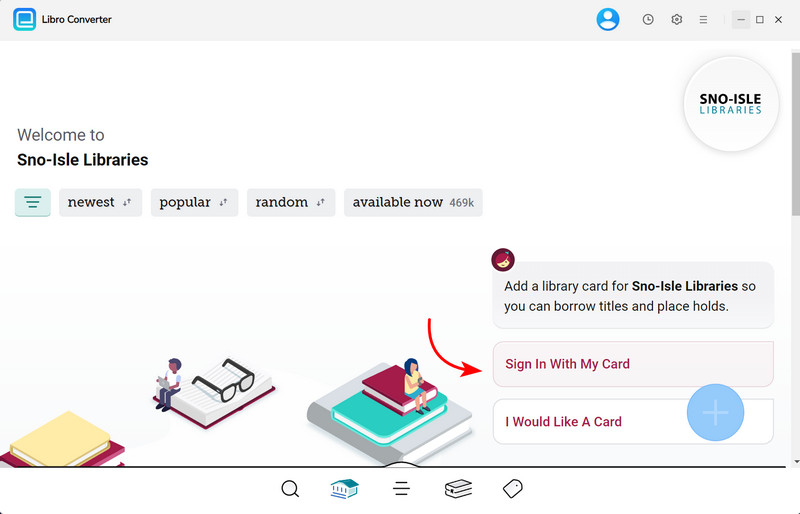
Open AnyLibro Converter and click the Search icon on the interface. Enter your library’s name to locate it, then sign in using your library card credentials. This grants the tool access to your borrowed items.
Step 2. Borrow Your eBooks on Libby
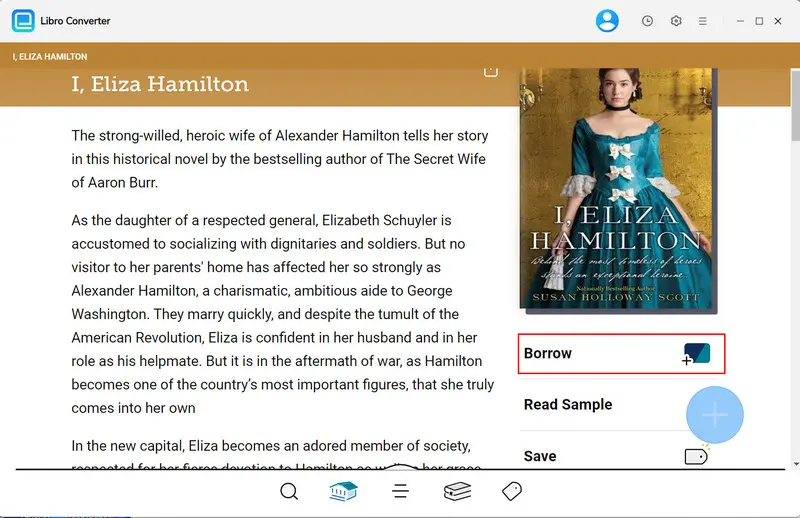
Search for titles within the tool and add them to your borrowing list. If you've reached your loan limit, return existing items to free up space before proceeding.
Step 3. Customize Output Settings
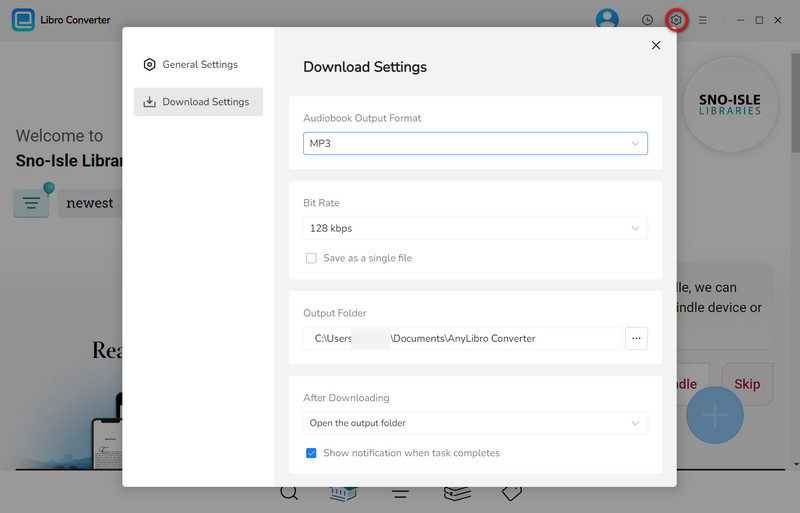
Click the Settings (Gear) icon to configure your preferred output. For eBooks, choose EPUB for broad device compatibility.
Step 4. Convert & Download Books from Libby
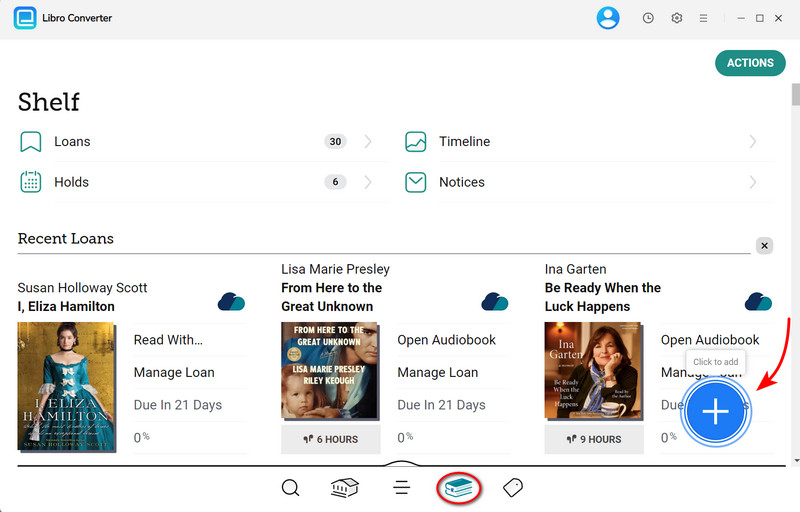
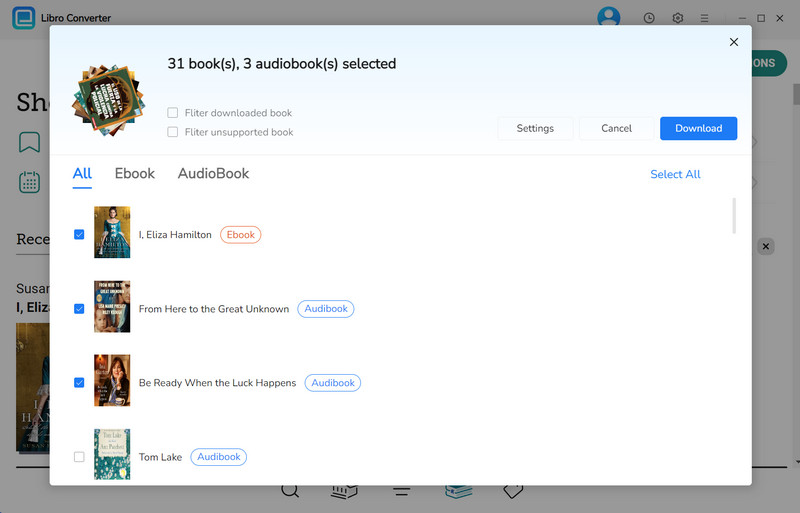
Navigate to your Shelf, click the "+" button, and add titles to your conversion list. Click "Download" to start processing. The tool will convert books to your chosen formats.
Step 5. Read Libby Ebooks Offline on Kindle
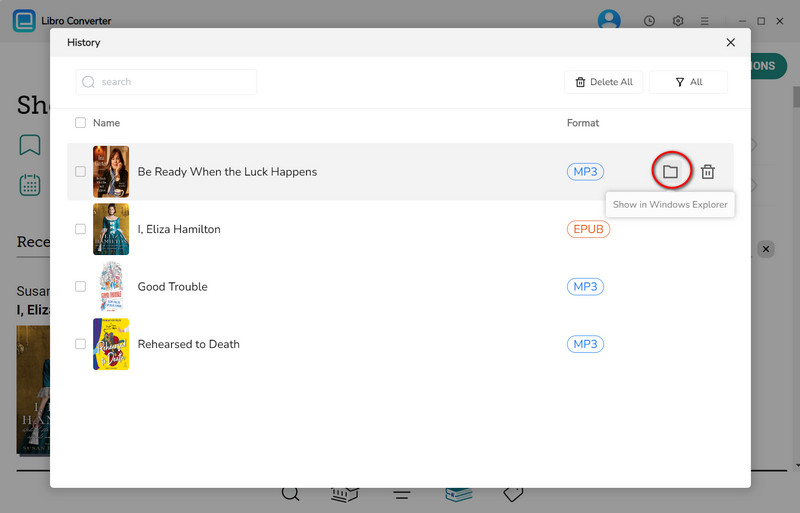
Once conversion is complete, open the output folder to find your eBooks or audiobooks. Now you can transfer Libby ebooks to any Kindle e-reader, tablets, smartphones, or other devices for listening offline.
YouTube Video: How to Convert Libby eBooks to EPUB
FAQs about Libby to Kindle
Q1: Why is "Read with Kindle" not available on my Libby eBook?
A: Libby only shows the “Read with Kindle” option when the ebook is available in a Kindle-compatible format. This option generally does not work with other eReaders, with the main exception being Kobo, which Libby supports natively.
For this, you can download Libby as an open EPUB or convert Libby EPUB to other supported formats with AnyLibro converter.
Q2: Can I listen to Libby audiobooks on Kindle?
It depends on the Kindle device. For example, the Kindle e-reader (Kindle Paperwhite) does not support the audiobook version, but only the Kindle Fire tablet does.
Q3: Will Libby ebooks expire on Kindle?
A: Yes. Each ebook on Libby has its own loan period. When the loan runs out, the book is returned to the library. It is feasible to re-borrow it to your shelf to make it active again. Alternatively, download and keep Libby ebooks forever by means of the AnyLibro converter.
Q4: Why don’t Libby books show up on my Kindle device?
A: You can troubleshoot it by checking the following:
The End
Bringing your library book collection to a Kindle has never been easier. By following this tutorial, we hope you’ll not be overwhelmed by reading books on Kindle. If you're on a Kindle Fire, just install the app on your Kindle Fire and start reading the book right away. On the Kindle Paperwhite and other e-readers, it’s a matter of sending the book over to your device—and that’s it. For an even further reading experience, download Libby ebooks for reading fully offline using AnyLibro Converter. Start enjoying it now.
Note: During the trial version, you can only convert and save the first 20% of each book. To unlock full access and convert entire books, you’ll need the full version.

Clara Whitman
Clara specializes in creating practical guides for book lovers and digital reading tools.
With years of experience exploring apps like Libby, Kindle, and Audible, she shares clear, step-by-step tips to help readers get the most out of their eBooks and audiobooks.
 Libby Audiobook Converter
 All-In-One Music Converter
 Spotify Music Converter
 Apple Music Converter
 YouTube Music Converter
 Amazon Music Converter
 Tidal Music Converter
 Streaming Music Recorder
 Photo Enhancer AI
 Video Enhancer AI
 Audible Audiobook Converter