


How to Listen to Libby Audiobooks While Driving (2026 Guide)
"I use Libby almost every day. Is there an easy way to listen to Libby audiobooks in the car?"
As one of the most popular free eBook and audiobook platforms, Libby has become a go-to choice for many readers and listeners. Whether you're commuting, on a long drive, or taking a road trip, audiobooks are the perfect companion on the road.
In this guide, we'll walk you through 5 practical ways to listen to Libby audiobooks while driving, and introduce a more flexible solution that lets you download Libby audiobooks, so you can enjoy them anytime, anywhere — not just while driving.
Part 1: 5 Easy Ways to Listen to Libby Audiobooks in a Car
Whether you're driving a brand-new car with advanced features or an older model with limited connectivity, there's always a way to enjoy Libby audiobooks on the road. Here are 5 practical options to help you listen while you drive.
Method 1. Apple CarPlay / Android Auto
If your car supports Apple CarPlay (iPhone) or Android Auto (Android), this is the safest and smoothest way to listen. Since Libby supports both systems, you can control your audiobook playback directly from your car's display.
For Apple CarPlay Users:
Step 1. Connect your iPhone to your car via USB or wirelessly.
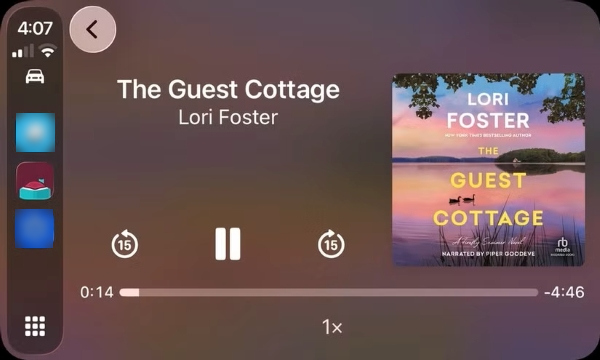
Step 2. Open Libby from the CarPlay home screen, then select and play your borrowed audiobook.
🎯 Tips: On the "Now Playing" screen, you can: Play / Pause; Skip forward or backward 15 seconds; Adjust playback speed (typically 1x–2x).
For Android Auto Users:
Step 1. Connect your Android phone to your car via USB or wirelessly.
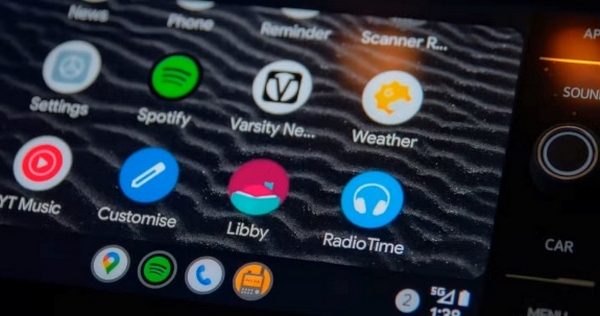
Step 2. Open Libby from your car's media apps list and tap an audiobook.
Step 3. Open the menu (in the top-left corner) to select an audiobook, tap "Resume" to continue listening.
🎯 Tips:
- If playback is already running on your phone, controls may pop up automatically on your car screen.
- On the "Now Playing" screen, you can: Play / Pause; Skip forward or backward 15 seconds; Adjust playback speed (typically 1x–2x).
- If your car runs Android Automotive (Google built-in system), you can install Libby directly on the car: Generate a pin code in the Libby on your phone > Enter the code on the in-car Libby app > Your library and loans will sync automatically.
Method 2. Bluetooth
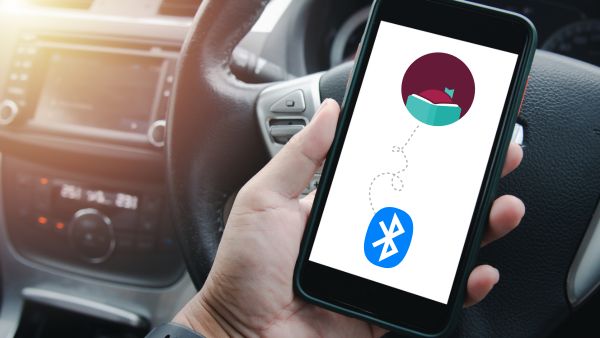
Bluetooth is the easiest and most widely supported option. Most cars made in recent years come with built-in Bluetooth. If your vehicle doesn't have it, you can simply use a Bluetooth receiver and plug it into the AUX port to enable wireless audio streaming.
Step 1. Turn on Bluetooth on both your phone and car, then pair the devices to establish a connection.
Step 2. Open Libby on your phone and start playing your audiobook.
🎯 Tips: Once paired for the first time, your phone should reconnect automatically whenever you start your car. Just make sure Bluetooth stays enabled on both your phone and the car.
⚠️ Note: If you're using navigation at the same time, voice directions may briefly interrupt your audiobook playback. This is normal — playback will resume automatically once the directions finish.
Method 3. USB Flash Drive
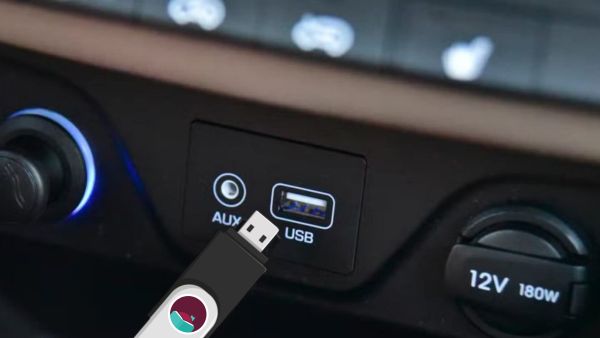
If you want to go completely phone-free and save battery, using a USB Flash Drive is one of the best options. You can download audiobooks to a USB drive and play them directly through your car's system.
Step 1. Plug the USB Flash Drive into your car's USB port.
Step 2. Select "Media" or "USB" mode on your car's system.
Step 3. The system will automatically detect audio files on the USB Flash Drive. Then choose an audiobook and start playing.
🎯 Tips: If your car doesn't have a USB port and only has a cigarette lighter socket, a USB adapter can provide power — but note that most adapters cannot read data from USB drives. A more practical alternative is to use a Bluetooth FM transmitter plugged into the cigarette lighter, and stream audiobooks from your phone instead (see Method 2).
Method 4. AUX Cable
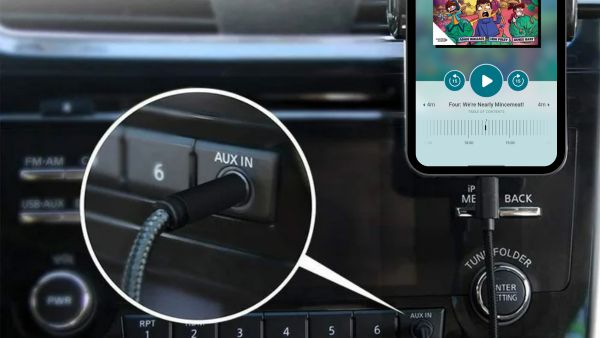
An AUX cable is one of the simplest and most reliable ways to connect your phone to your car. It works with almost any vehicle that has an AUX input. All you need is a standard 3.5mm male-to-male audio cable.
Step 1. Plug one end of the cable into your phone and the other into your car's AUX input (usually located on the dashboard, inside the center console, or near the cigarette lighter).
Step 2. Switch your car's audio system to "AUX" or "Source" mode.
Step 3. Open Libby on your phone and start playing your audiobook.
🎯 Tips: Most modern smartphones no longer include a 3.5mm headphone jack, so you may need an adapter:
- iPhone (Lightning port): Use a Lightning-to-3.5mm adapter.
- Android phones / iPhone 15 and newer (USB-C): Use a USB-C-to-3.5mm adapter.
Method 5. CD Player
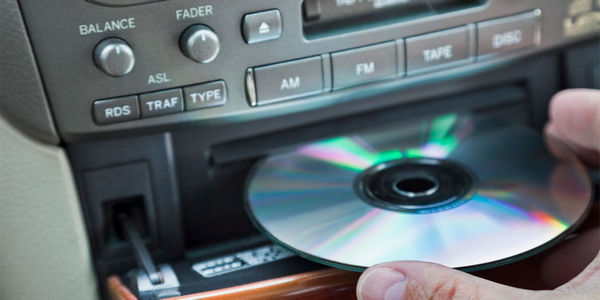
If your car has a CD player, that's actually a big advantage — many modern cars no longer include one. You can burn audiobooks onto CDs and play them directly through your car's CD system.
Step 1. Insert the audiobook CD into your car's CD slot.
Step 2. Press the SOURCE, MODE, or CD button to switch the audio source to CD mode.
Step 3. The system will automatically read the disc. Then choose an audiobook and start playing.
🎯 Tips:
- If your car's CD player is older and does not support MP3 format, you must burn the disc in "Audio CD" mode. Audio CDs have limited capacity, so long audiobooks may require multiple discs.
- If your CD player has an "MP3" or "WMA" logo on the front panel, you can burn the files as a "Data CD". To ensure correct playback order, always add numbers to your file names (e.g., 01_Chapter 1.mp3). If your car shows "Error" or "No Disc", it likely doesn't support the burned format — try reburning the disc as an "Audio CD".
- If your car doesn't have a built-in CD player, you can use an external USB CD drive connected to your car's USB port.
Part 2: How to Download Libby Audiobooks to USB / MP3
When using Method 4 or 5 in Part 1, you'll likely run into a key issue: how to download Libby audiobooks. While Libby does allow downloads, they are restricted to offline listening within the Libby app only, meaning you can't truly export or keep the files. More importantly, Libby operates on a borrowing system. Once your loan ends, you lose access to the audiobook and must place a hold again — which could mean waiting days, weeks, or even months.
AnyLibro Converter can help you bypass these limitations by downloading and saving your borrowed Libby audiobooks or eBooks as local files — so you're no longer tied to loan periods. Once downloaded, you can transfer your audiobooks to virtually any device — whether it's an MP3 player, USB drive, or even a CD player — without being restricted to the Libby app.
AnyLibro Converter
How to Download Audiobooks from Libby
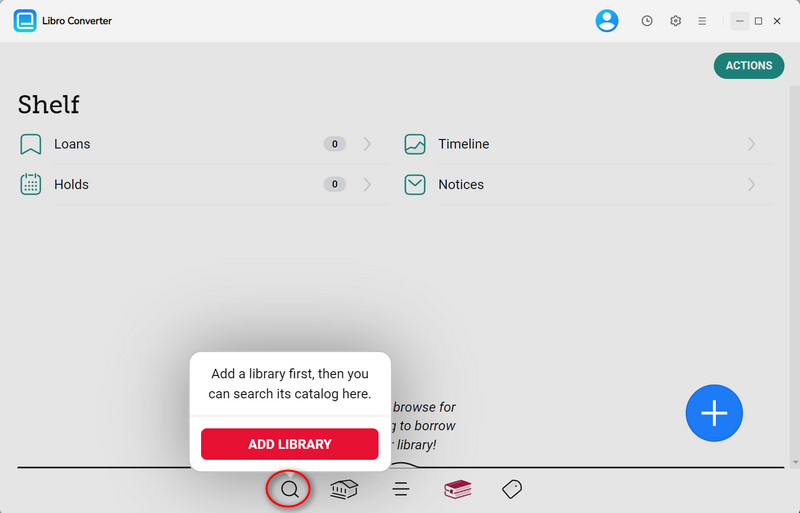
Step 1. Download and launch AnyLibro Converter on your computer. Next, click the search icon at the bottom. Add a library and log in with your library card credentials.
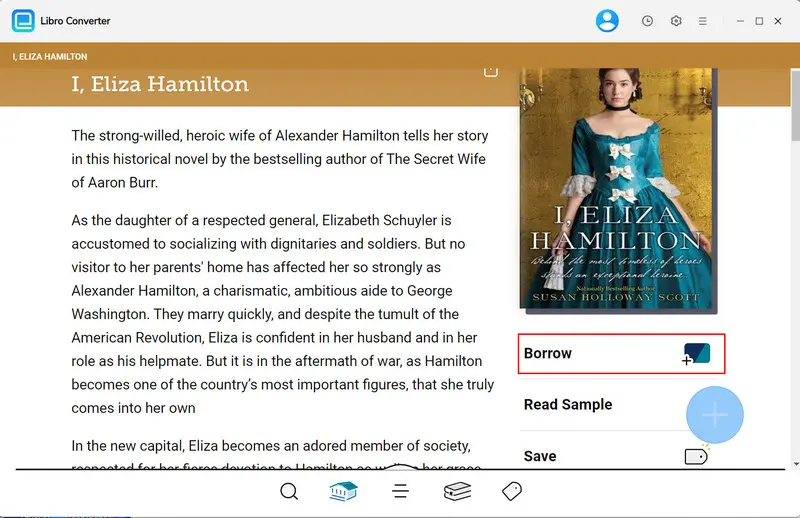
Step 2. Browse or search for the audiobooks you want to download, then borrow them.
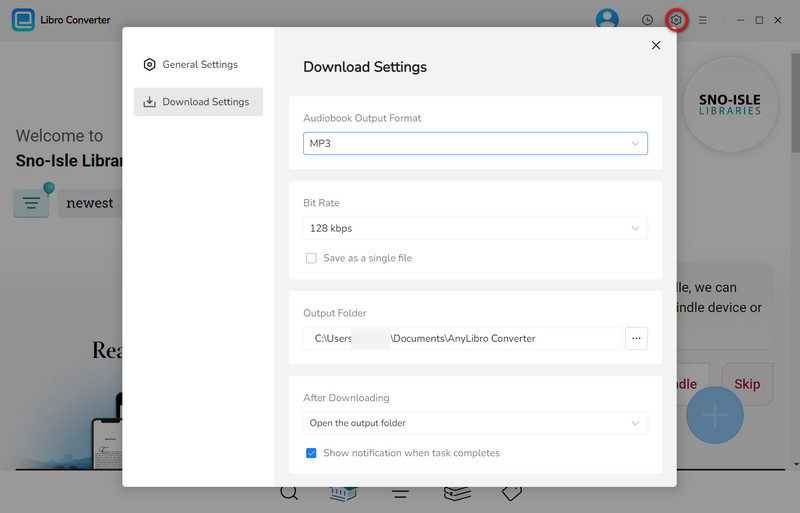
Step 3. Click the gear icon in the upper-right corner to open Settings. Choose the output format, bit rate and output folder as needed.
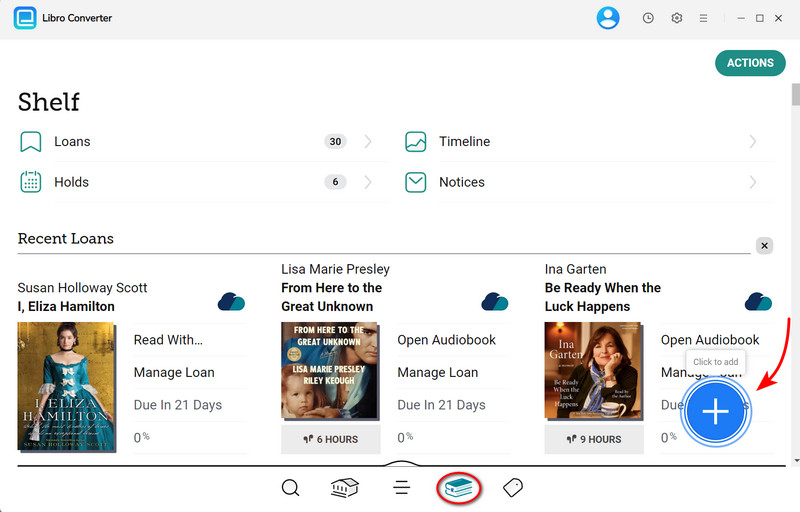
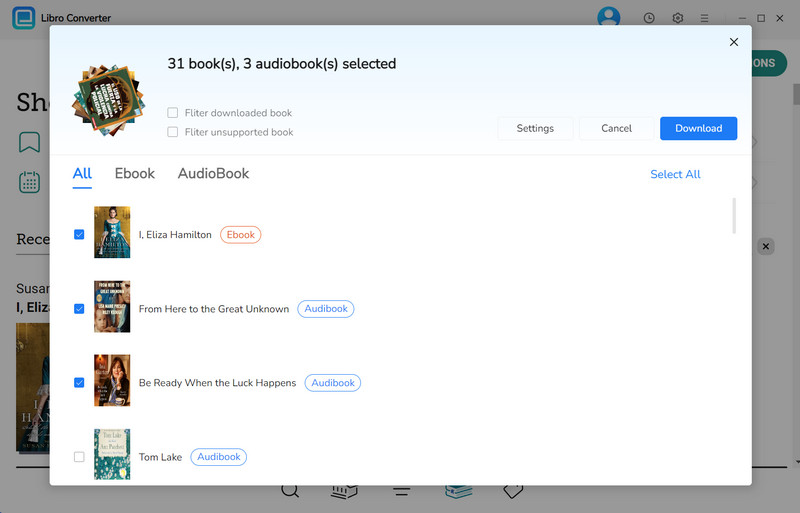
Step 4. Go to Shelf. Click the floating "+" button to add selected audiobooks to the conversion queue.
Step 5. Click the "Download" button to begin converting the audiobooks you choose.
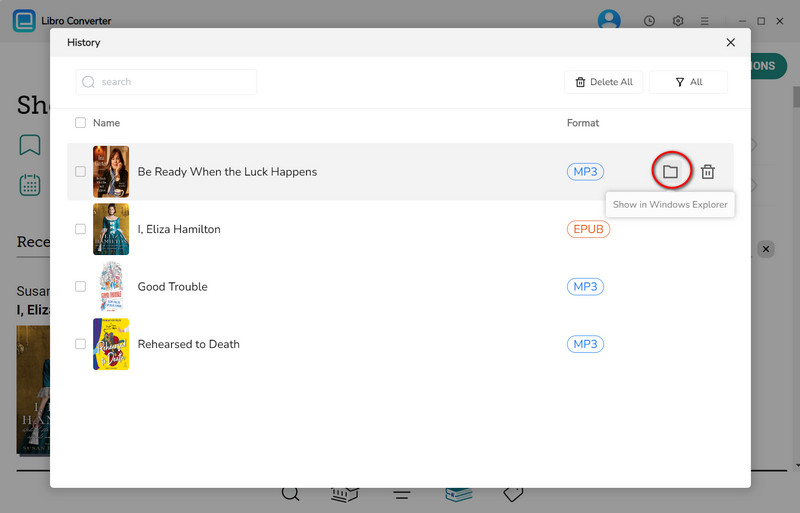
Step 6. Once conversion is complete, click the clock icon in the top-right corner to see the downloads. Hover over a file and click the folder icon to open the output folder. Then, you can listen to Libby audiobooks offline.
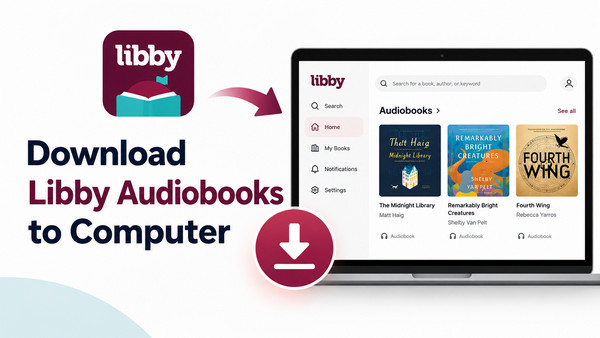
YouTube Video: How to Convert Libby Audiobooks to MP3
FAQs about Listening to Libby Audiobooks While Driving
Q1: Is it safe to listen to audiobooks while driving?
Listening to audiobooks while driving is generally safe in moderation, but it depends on the content and road conditions. It's best to choose simple or familiar content, such as light fiction, biographies, or books you've already listened to. Avoid highly complex material — like dense thrillers, suspense novels, or language learning — which can significantly distract you.
Before you hit the road, choose your audiobook and press play. Avoid using your phone while driving to stay safe.
Q2: What happens if my Libby loan expires while I'm listening in the car?
Unfortunately, there's no real workaround. Whether you're streaming or listening offline, once your loan expires, Libby automatically removes the audiobook from the app, and the file becomes inaccessible. However, you can plan ahead to avoid interruptions:
- Use AnyLibro Converter to download and keep a copy of the audiobook in advance.
- Check the due date in advance: go to Shelf > Manage Loan to see if renewal is available.
If renewal isn't available, place a hold again. Libby will remember your progress and resume from where you left off when you borrow it again.
Q3: Why isn't Libby showing up on my CarPlay/Android Auto?
Please try the following steps to resolve the issue:
- If Libby doesn't appear in CarPlay: Open Settings on your phone > General > CarPlay > Your Car > Customize, then check if Libby is hidden and tap "+" to add it.
- If Libby doesn't appear in Android Auto:
- ① Disconnect > Open Settings on your phone > Android Auto > Customize launcher > Make sure Libby isn't hidden and is enabled.
- ② Disconnect > Open Settings on your phone > Android Auto > Scroll to the bottom and tap "Version" 10 times to enable Developer Mode > Tap the three dots in the upper-right corner to open Developer Settings > Enable Unknown sources > Restart your phone and reconnect to your car.
The End
Above are 5 practical ways to listen to Libby audiobooks while driving. No matter which method you choose, there's likely one that fits both your car and your routine. That said, a more flexible option is to download your Libby books with AnyLibro. This way, you can listen or read anytime — now or later — without worrying about internet access or device limitations.
Note: During the trial version, you can only convert and save the first 20% of each book. To unlock full access and convert entire books, you’ll need the full version.

Clara Whitman
Clara specializes in creating practical guides for book lovers and digital reading tools.
With years of experience exploring apps like Libby, Kindle, and Audible, she shares clear, step-by-step tips to help readers get the most out of their eBooks and audiobooks.
 Libby Audiobook Converter
 All-In-One Music Converter
 Spotify Music Converter
 Apple Music Converter
 YouTube Music Converter
 Amazon Music Converter
 Tidal Music Converter
 Streaming Music Recorder
 Photo Enhancer AI
 Video Enhancer AI
 Audible Audiobook Converter