


Libby Book Not Showing up on Kindle? Fix It with 7 Methods
"I borrowed a book from Libby. Clicking 'Read with Kindle' on the Libby app only opens up Kindle but not the book, nor does it show in the library. Has anyone figured out how to fix this?" -- quoted Reddit
Libby makes it easy for all readers to borrow ebooks & audiobooks from their local library for free online. It also supports transferring borrowed books directly to Kindle for enjoyment. Nonetheless, the Libby Kindle sync is not always working. Some users may encounter the frustrating issue of Libby books not appearing on their Kindle, as mentioned above.
Not to worry. Check this troubleshooting guide to fix Libby books not showing up on Kindle, so that you can smoothly get Libby books on Kindle and be ready to read.
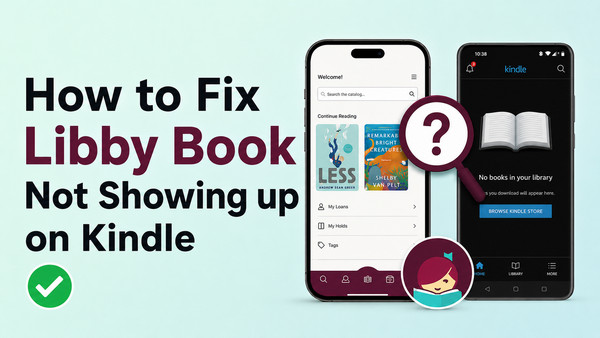
Part 1: Why Is Libby Book Not Showing up on Kindle?
Before tackling the problem of the Libby book not transferring to Kindle, let's figure out what could be causing it.
- Signed in to the wrong Amazon account.
- The book does not have a supported Kindle format
- Libby has a syncing delay.
- Amazon's "Send to Kindle" service is temporarily down or delayed.
- The library loan has expired or the book was returned early.
- Unstable internet connection during use.
- The Libby app and Kindle app are out of date.
- Regional Restrictions on Amazon Account.
Keep Libby books permanently showing up on your device? Try the hassle-free AnyLibro Converter-no risks, no limits.
Part 2: How to Fix Libby Book Not Showing up on Kindle [ 7 Methods ]
Here’s a quick reference.
| Fix | Difficulty | Resolves |
| Verify Amazon account in Libby | Easy | Wrong account delivery |
| See the Book Loan Duration | Easy | Book expired on your Kindle library |
| Manually Sync Your Libby Book to Kindle | Easy | Book delivered but not showing |
| Redeliver the Book from Amazon to Kindle | Easy | Book reached Amazon but not Kindle |
| Restart Everything | Easy | Temporary bugs or glitches in the Libby app & Kindle device |
| Update the Libby App and Kindle | Easy | Corrupted cache data blocking sync |
| Change Amazon Account Region Settings | Easy | The Amazon account location mismatched the library |
Below, we go through 7 different fixes. Just choose the working one based on your scenario.
Fix 1: Verify and Switch Your Amazon Account for Libby
It is a common solution for Libby's books not to appear on Kindle. Typically, if the Amazon account isn’t the one signed into your Kindle, the borrowed book won’t show. Therefore, you can verify if the Amazon account is correct and switch it in time.
Step 1. Start the Libby app and go to Shelf (your loans) at the bottom.
Step 2. Navigate to the target book and select "Read with Kindle" (or "Send to Kindle"), then see the displayed Amazon account.
Step 3. Now compare it against the account in Settings > Your Account on your Kindle.
Step 4. If they do match, you can successfull get Libby library book on your Kindle and read now; If not, tap "Switch Amazon Account" in Libby and reconnect.
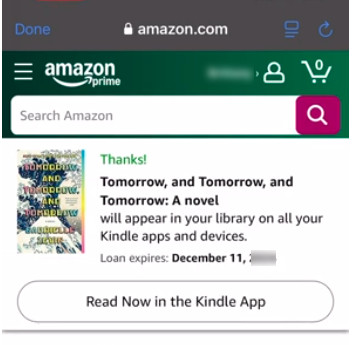
Fix 2. See the Book Loan Duration
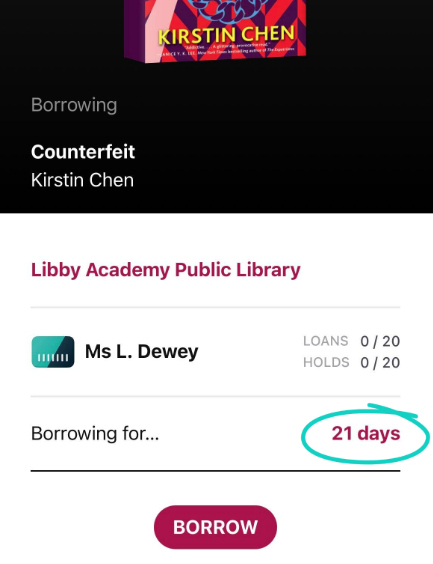
If the loan date passes, the borrowed titles will be automatically returned and removed from the Kindle library. But surprisingly, it is easily solved by reborrowing and resending the Libby book to your Kindle.
Step 1. Go to Libby → Shelf → Loans
Step 2. Find the expired book and re-borrow it (if it’s still available).
Step 3. Hit “Read with Kindle” again to send it back to your Amazon account.
Step 4. Refresh your Kindle app or restart your device.
Fix 3. Manually Sync Your Libby Book to Kindle
Sometimes the Libby book does not always appear on Kindle on time. It's advisable to tackle this by manually syncing and refreshing quickly. See these steps to sync your Libby book to your Kindle app & device.
On the Kindle app:
Step 1. Open the Kindle app, and go to Settings.
Step 2. Tap Sync or Sync your Kindle.
On the Kindle Device:
Step 1. Connect your Kindle to a stable network.
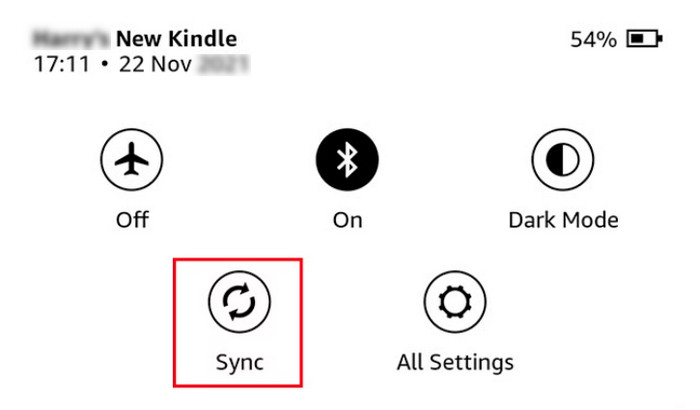
Step 2. Swipe down from the top to open the quick Settings menu.
Step 3. Tap a "Sync" icon. This will force your Kindle to check in with Amazon's servers.
Step 4. Back to the "Library > All", and find the newly borrowed book from Libby
Fix 4. Redeliver the Book from Amazon to Kindle
There's also a case where users are looped to getting a library book from Amazon's website onto their Kindle. For this, it works to configure some settings in Amazon.
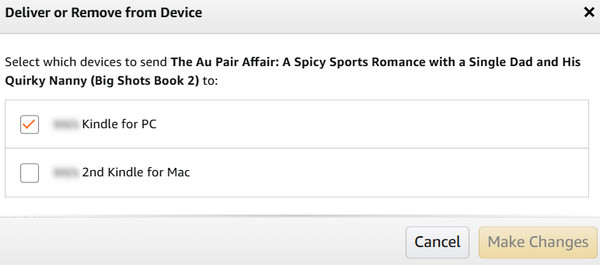
Step 1. Go to Amazon’s Content & Devices page and open the Books tab.
Step 2. Find the Libby title and click Deliver or Remove from Device.
Step 3. Choose the Kindle or app you want to send it to, then confirm with Make Changes.
Note: If the book was already delivered before, remove it from the device first, then repeat the delivery process again.
Fix 5. Restart Everything
It seems basic and does work to clears temporary glitches. Users can try performing a simple restart for app and devices by needs.
- Close Libby app
- Close Kindle app
- Restart your phone or Kindle device
- Run Libby again and resend the Libby book to Kindle
Fix 6. Update the Libby App and Kindle
In the meantime, it's also vital to perform the Libby application & Kindle device update. By not updating, you continue to deal with bugs such as the Libby app not working and problems with reading, syncing, or downloads.
Update Libby:
Step 1. Open the App Store (Play Store for Android).
Step 2. Search "Libby", and tap Update if available.
Update Kindle Device:
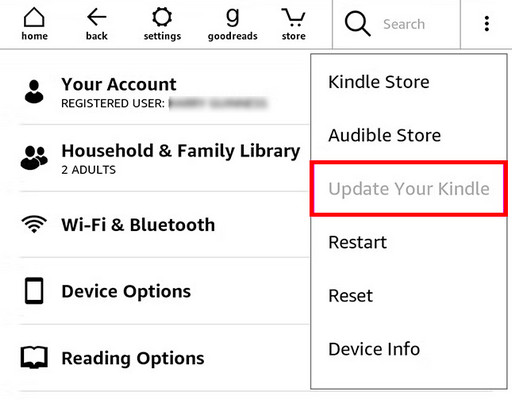
Step 1. On the Kindle's home page, tap the three little dots in the top right.
Step 2. Click "Update Your Kindle" if it is available. When this option is grayed out, it means that your Kindle is up to date.
After updating both, restart the app and your Kindle, then re-attempt the send.
Fix 7. Change Amazon Account Region Settings
One thing that's easy to overlook is your Amazon account region. If your account is registered outside the U.S. (or you've recently switched marketplaces), Kindle delivery from Libby can get a little wonky. Amazon's region changes don't always update instantly across all services, so it may take a few hours or sometimes longer before everything syncs up. Once the change has fully propagated, go back to Libby, tap "Read With Kindle" again, and resend the book. That fixed it.
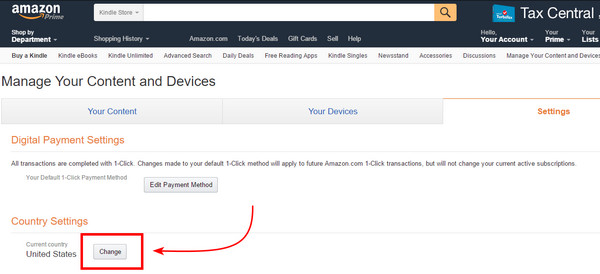
Step 1. Open your Amazon account and go to "Manage Your Content and Devices".
Step 2. On the Preferences tab, find Country/Region Settings.
Step 3. If your library card belong to U.S. and are eligible for Kindle delivery, make sure your Amazon account is set to the United States.
Step 4. Save any changes and sign out and back in to Amazon if prompted.
Step 5. Return to Libby, tap "Read With Kindle" again, and complete the Libby to Kindle transfer
Extra Tricks: How to Download Libby Books Offline for Playing Anywhere
Tired of Libby to Kindle transfer issues? There's a nifty trick to sidestep the Kindle sync problem entirely and keep Libby titles you borrow, on any device, offline, forever.
AnyLibro is a dedicated Libby audiobooks & ebooks downloader that converts Libby books to MP3, M4A, M4B, or EPUB formats in batches. All files keep the original sound quality and metadata info. Once converted, the reading and listening are flexible. It doesn't expire when the loan ends, and you can transfer the downloaded Libby books to Kindle and any ereader.
AnyLibro Converter
How to Download Libby Books for Offline Playing
Step 1.Open AnyLibro Converter on your PC or Mac and log in with your library card. The software will automatically detect all your borrowed Libby ebooks and audiobooks from the cloud.
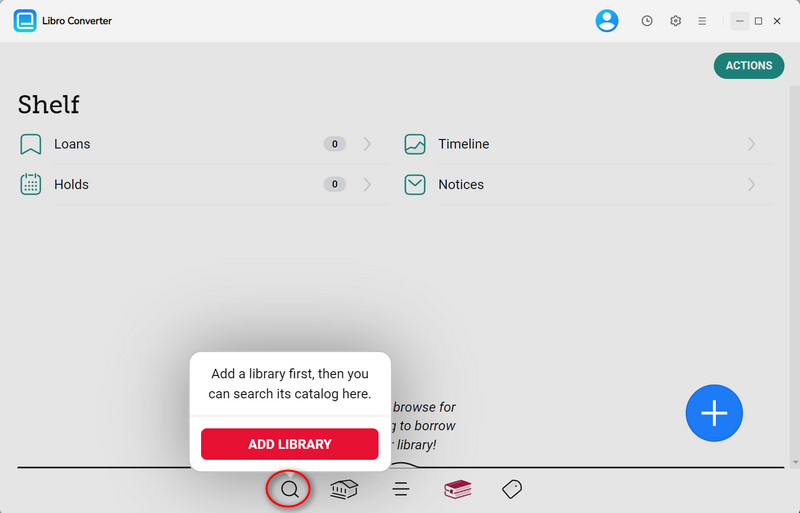
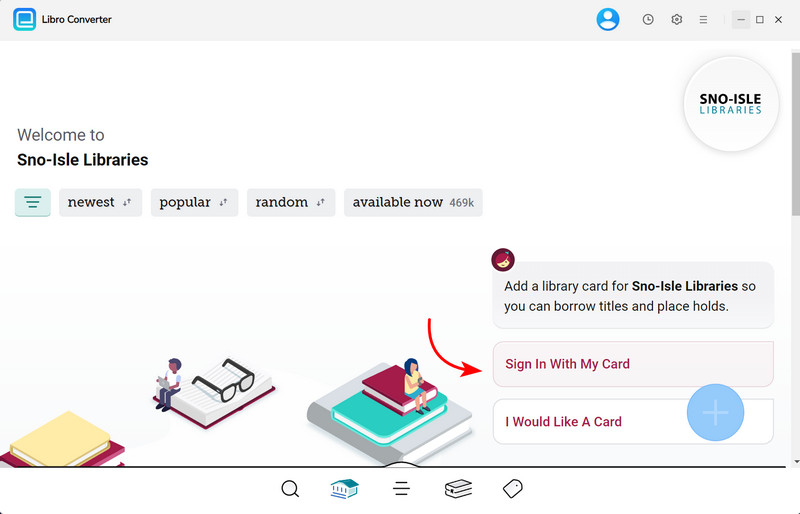
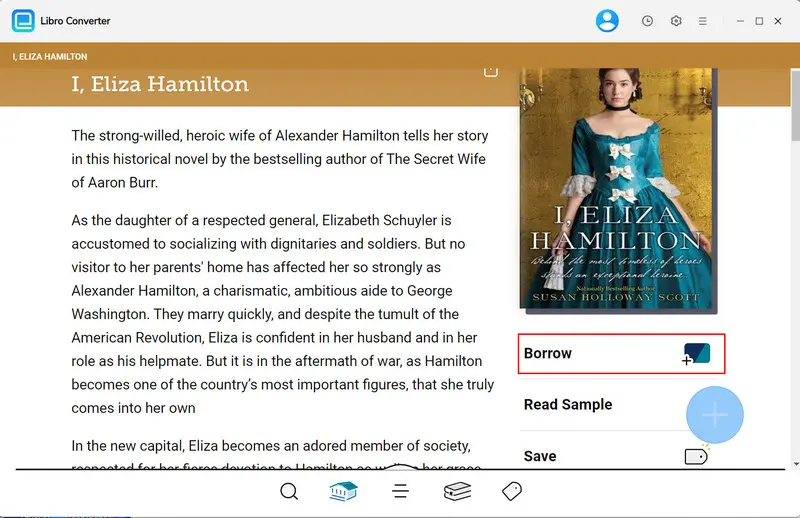
Step 2.Use the built-in search to find the Libby books you want to keep permanently. Just like in the Libby app, add them to your loan list inside AnyLibro
If you hit your Libby loan limit, return an older title first to free up space for the books you really want to save.
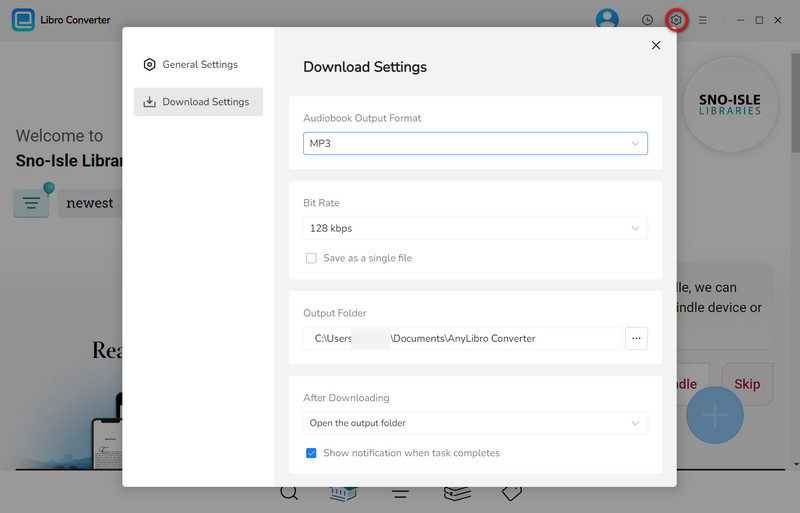
Step 3.Click the Gear icon to open Settings:
For Libby audiobooks, choose MP3 or M4B.
For Libby ebooks, select EPUB.
You can also adjust the bit rate, output folder, and other options to ensure high-quality downloads.
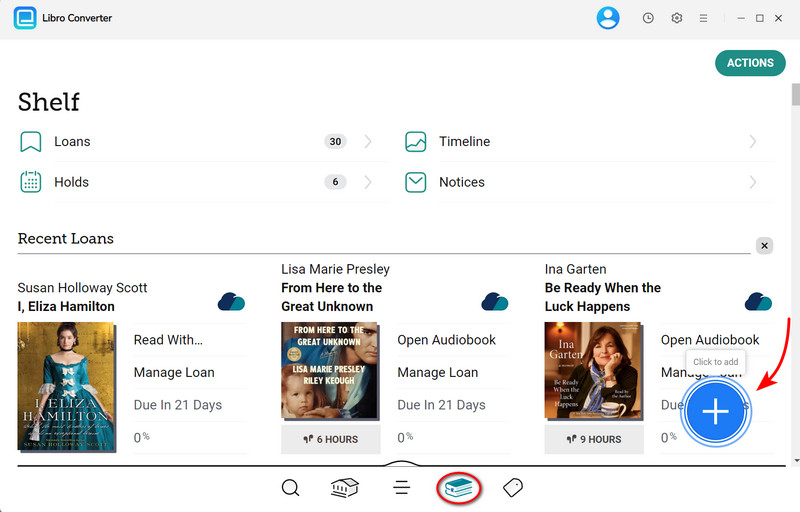
Step 4.Go to Shelf by clicking the book icon. Click the floating “+”button in the lower-right corner. AnyLibro Converter will analyze your Libby loans and load them automatically.
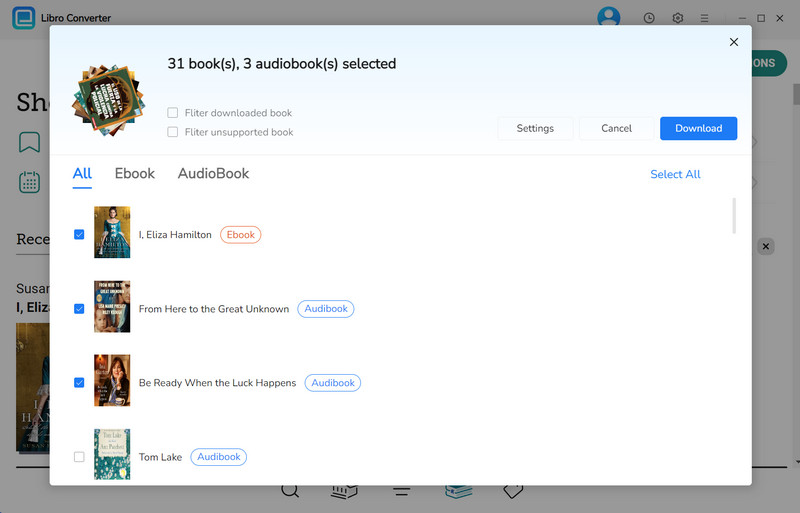
Step 5. Click the Download button to convert Libby books into MP3 or EPUB files.
FAQs about Libby Kindle Sync Issues
Q1. The option of "Send to Kindle" does not work. Why?
A: It is probably caused by multiple reasons. You can refer to this quick list.
- The book does not have this Kindle format.
- Your library is not in the United States.
- Amazon and Libby are not properly linked.
- Kindle sync has not updated yet.
- You send a book to a different Kindle device.
- The library loan expired.
Q2. How long does it take for a Libby book to appear on Kindle?
A: Generally speaking, the Libby book will soon appear on your Kindle after it is sent. But if the network is poor or in a high-traffic period, delivery can take over 10 minutes. If it hasn't shown after 30 minutes and you've manually synced your Kindle, the delivery has likely failed — use Fix #4.
Q3. Do Libby books expire on Kindle?
A: Yes. The Libby books are subject to the loan period of the Libby app. It is typically 14 or 21 days, depending on your library. After expiry, the book becomes inaccessible on your Kindle.
To keep a book permanently, use AnyLibro Converter to convert it to a permanent local file before the loan expires.
Wrapping It Up
The woe of "Libby book not showing on Kindle" is really frustrating if you're unsure how to deal with it. But hopefully, on this page, we've listed a wide selection of solutions for this. You just need to target the actual cause and fix it accordingly. Beyond that, if you're looking to download Libby audiobooks, ebooks, and any titles for offline listening on any generic device, then AnyLIbro Converter is good to go! Give it a shot right now!
Note: During the trial version, you can only convert and save the first 20% of each book. To unlock full access and convert entire books, you’ll need the full version.

Clara Whitman
Clara specializes in creating practical guides for book lovers and digital reading tools.
With years of experience exploring apps like Libby, Kindle, and Audible, she shares clear, step-by-step tips to help readers get the most out of their eBooks and audiobooks.
 Libby Audiobook Converter
 All-In-One Music Converter
 Spotify Music Converter
 Apple Music Converter
 YouTube Music Converter
 Amazon Music Converter
 Tidal Music Converter
 Streaming Music Recorder
 Photo Enhancer AI
 Video Enhancer AI
 Audible Audiobook Converter