


Libby Hacks: 10 Smart Tips to Master Your Digital Reading
For many readers, Libby has already become an essential companion in their daily reading life. But once you dive deeper into the app, you'll quickly realize that tasks like borrowing books, managing holds, organizing reading lists, and keeping up with your reading pace — though seemingly simple — still leave plenty of room for optimization.
That's why those lesser-known features and hidden tricks are especially worth mastering. They can help you borrow the books you want more quickly, manage your reading schedule more efficiently, streamline your hold queues, and even keep your digital shelf cleaner and more aligned with your reading habits.
In this guide, I'll walk through 10 proven Libby hacks that help you borrow smarter and read with fewer limits. From smarter borrowing strategies to better list organization and an overall smoother reading experience, you'll find useful, ready-to-apply tricks whether you're brand-new to Libby or already a seasoned user.

Part 1: Why You Need These Libby Hacks?
Libby gives readers instant access to vast digital collections from public libraries. For book lovers, it's one of the most convenient and completely free ways to borrow eBooks and audiobooks. With just a few taps, you can browse, borrow, and start reading or listening instantly — without visiting the library in person.
However, Libby is still limited by traditional library borrowing rules. As a result, many users encounter familiar frustrations, such as:
- "I waited a long time but never got the book."
- "I hadn't finished reading it before it was gone."
To help you borrow more smartly, manage your reading list efficiently, and enjoy a smoother experience overall, the next section presents 10 practical Libby hacks to make the most of the app.
Part 2: 10 Smart Tips for Libby Hacks 💡
Now that we understand why these Libby tips and tricks are necessary, let's dive into the practical part. Here are 10 Libby hacks that don't resly on complex operations or require extra tools. Instead, they focus on three core goals: borrowing more accurately, reading more reliably, and managing more clearly.
1. Add Multiple Libraries to Unlock More Books 📚
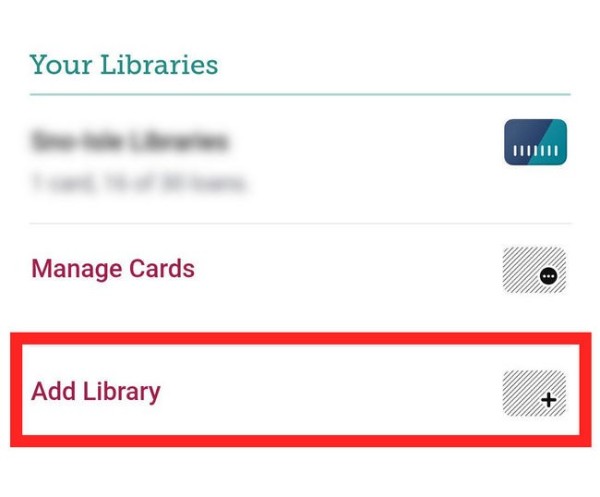
Many public libraries offer free digital cards, and some even allow non-residents to join for expanded access. Adding multiple libraries in Libby lets you browse different collections and compare availability at a glance, giving you more chances to borrow popular titles. Below are some popular public libraries:
- Miami-Dade Public Library System
- San Jose Public Library
- Sunnyvale Public Library
Step: Go to Menu > Add Library.
2. Use Tags to Organize Your Book List 🏷️
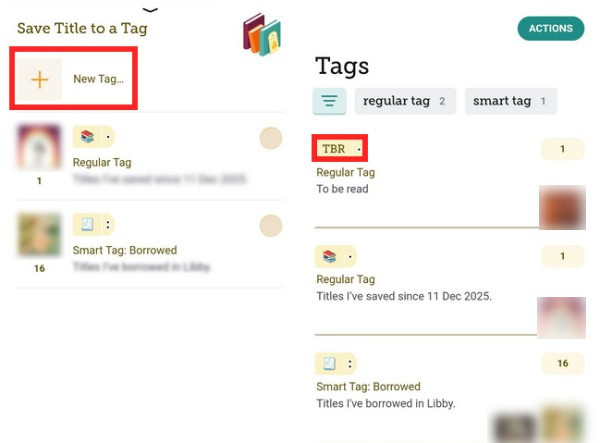
Instead of aimlessly placing everything on Hold, use Libby's Tags feature to organize books you plan to read later. Tags help you manage your reading plans more clearly and systematically.
Common tag examples include:
- TBR (To Be Read)
- Did Not Finish
- Favorites
Step: Search Books > "Save" > "New Tag...".
3. Turn on Airplane Mode on Your Kindle to Extend Reading Time ✈️
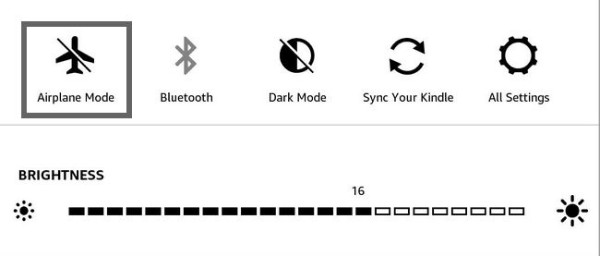
When you send a Libby eBook to your Kindle, switching to Airplane Mode (disconnecting Wi-Fi) during the loan period prevents your Kindle from syncing the book's expiration status. As long as the device stays offline, you can keep reading beyond the original loan duration.
4. Extend Your Loan to the Full 21 Days ⏳
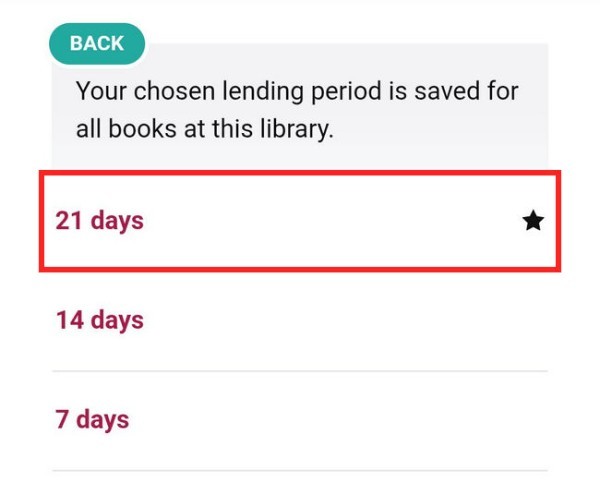
Many libraries allow you to choose or adjust the loan period when borrowing or renewing a title. Once you choose a new loan period, it will also become the default setting for future loans of the same format from that library.
Step: Select books to borrow > "Borrow" > "Borrowing for...".
5. Return Early to Unlock the "Bouquet Animation" 💐
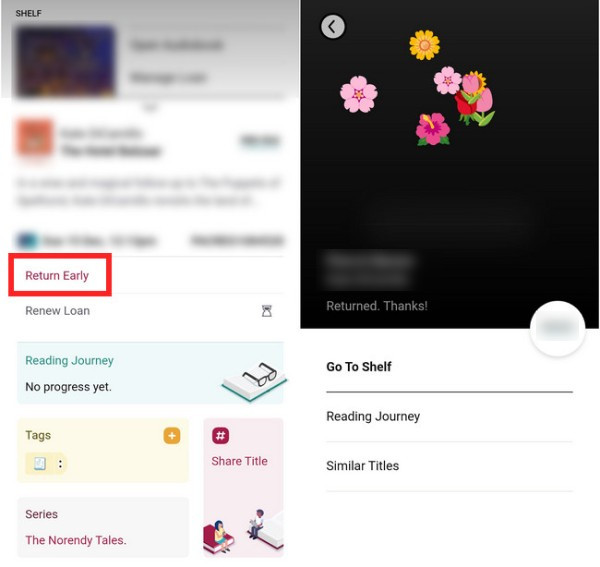
Returning a book early has two benefits: first, it lets the next reader borrow it right away; second, it triggers a cute "bouquet" animation, adding a little extra joy to your reading.
Step: Go to Shelf > "Loans" > "Manage Loan" > "Return Early".
6. Use "Suspend Hold" to Control the Perfect Borrowing Timing 🎯
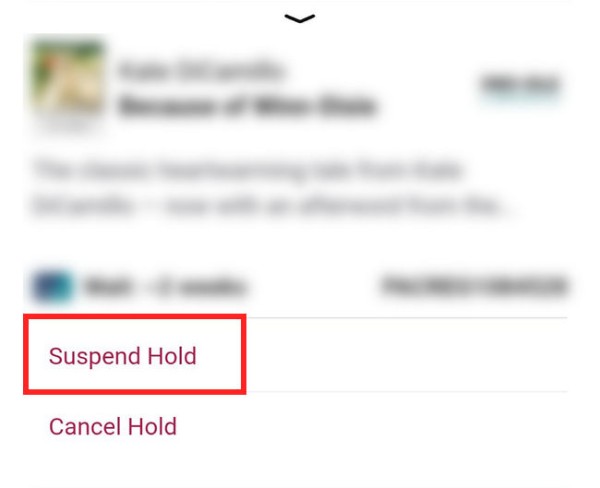
If a hold becomes available when you're too busy to read, suspend it. Your position in line is preserved while the queue keeps moving, so you don’t lose your spot.
Step: Go to Shelf > "Holds" > "Manage Hold" > "Suspend Hold".
7. Turn on "Deep Search"🔍 + "Notify Me"🔔
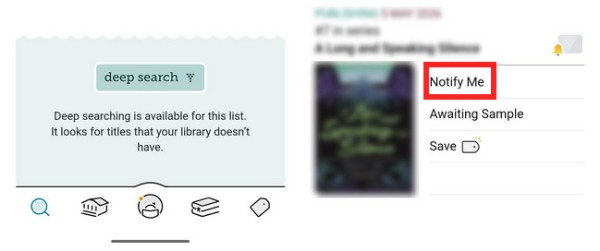
If you can't find a book in the library, don't be discouraged. Use the "Deep Search" to expand results. Tapping "Notify Me" alerts you when the library acquires the title, and your request will also be sent to the library’s acquisitions team, helping them understand readers’ needs and make purchasing decisions.
Step: Search for a specific title, author, or series > Scroll to the bottom of the search results > "Deep search" > Find the book you want, tap"Notify Me".
8. Adjust Audiobook Speed for Better Listening 🎧
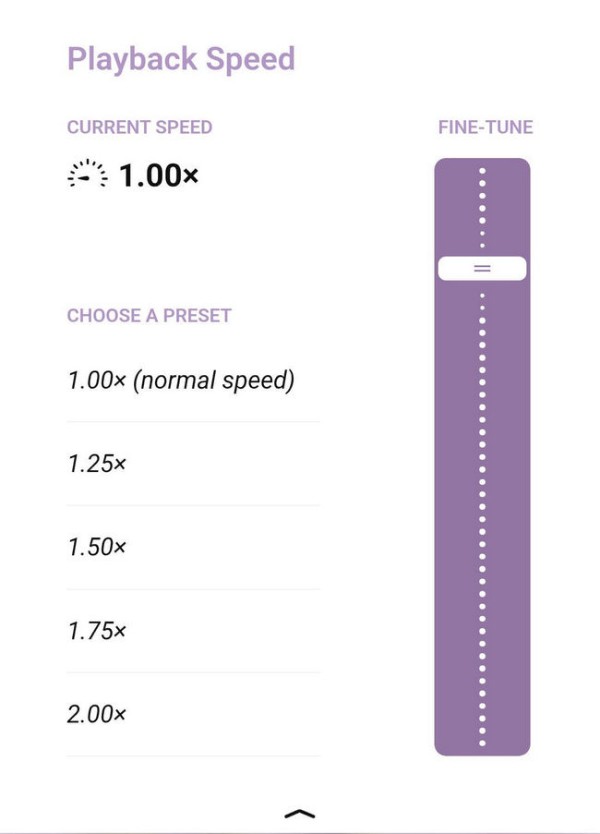
Customize playback speed based on the narrator and your listening preference for a more comfortable experience. On the playback screen, you can choose a preset speed or fine-tune it using the slider.
Step: Play an audiobook > Tap the "Speed icon" at the top of the screen.
9. Explore Libby Newsstand — Free Magazines 📰
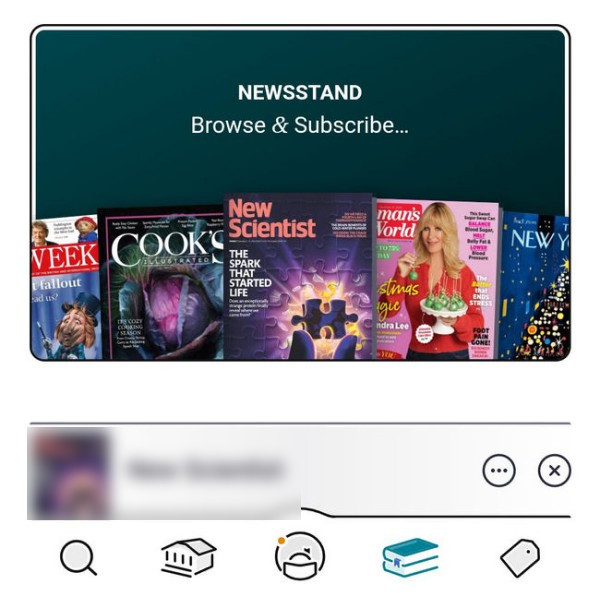
This is an often-overlooked gem in Libby. Unlike eBooks, magazines have no waitlists, no borrowing limits, and no return dates. Subscribe to your favorites so new issues appear automatically on your shelf.
Step: Go to Shelf > Scroll down to find "Magazine Rack" > "Newsstand".
10. Customize Card Styles & Accessibility Features 🎨
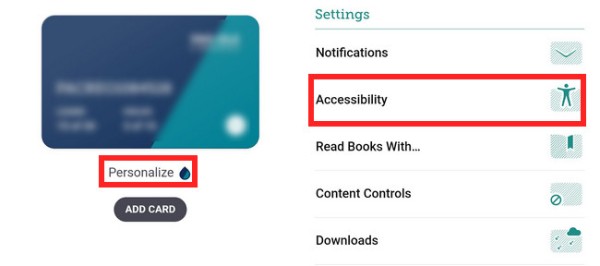
In Libby's Card Settings, you can assign different colors to library cards from different libraries, making it easier to quickly distinguish and identify them.
Step: Go to Menu > "Manage Cards" > "Personalize".
You can also adjust options such as Effects, Orientation Locking and Timing in Settings to optimise your reading experience and accommodate different usage needs.
Step: Go to Menu > "Accessibility".
These everyday Libby hacks may seem small, but together they dramatically improve your reading efficiency and flexibility.
Part 3: The Best Libby Hack for Offline Freedom
These Libby tips enhance borrowing efficiency, but there's one fundamental limitation you can't bypass: borrowed eBooks don't truly belong to you. Once the loan period ends, access disappears automatically.
Many readers eventually start asking the same question: how to keep Libby books longer and enjoy true offline freedom.
If you want to reread favorites, build a personal digital library, or use multiple devices freely. To gain true offline freedom, some users choose to convert eBooks into more universal formats that can be used freely across multiple devices, such as EPUB or PDF.
This is exactly where AnyLibro Converter shines — as a powerful Libby downloader, it allows your treasured books to become true digital assets, giving you full control and the freedom to read anytime, anywhere.
AnyLibro Converter
Steps to Download Libby Books
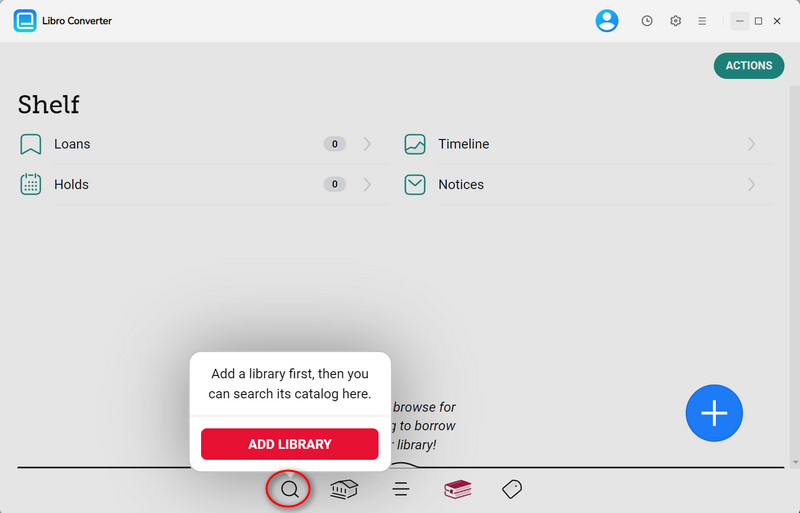
Step 1.Download and launch AnyLibro Converter on your computer. Next, click the search icon at the bottom. Add a library and log in with your library card credentials.
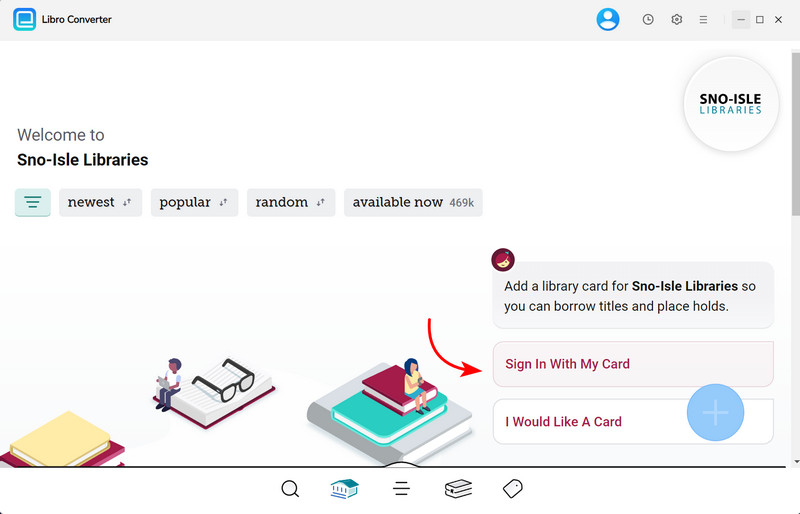
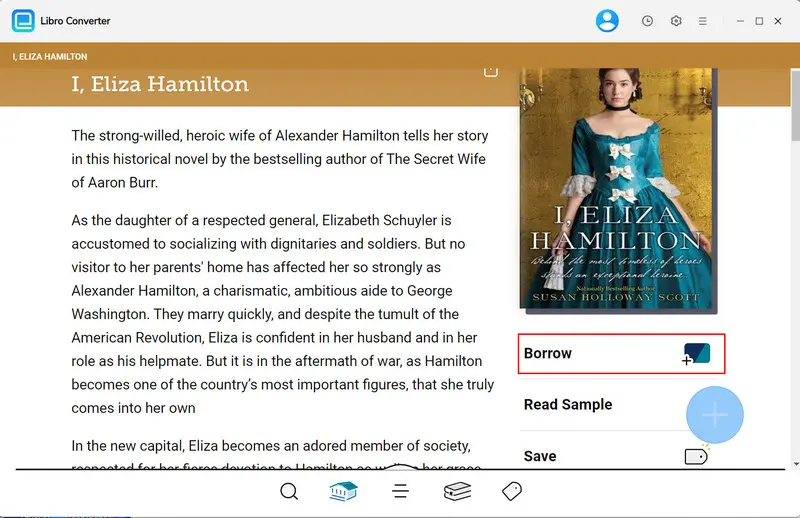
Step 2.Browse or search for the eBooks/audiobooks you want to download, then add them to your Load.
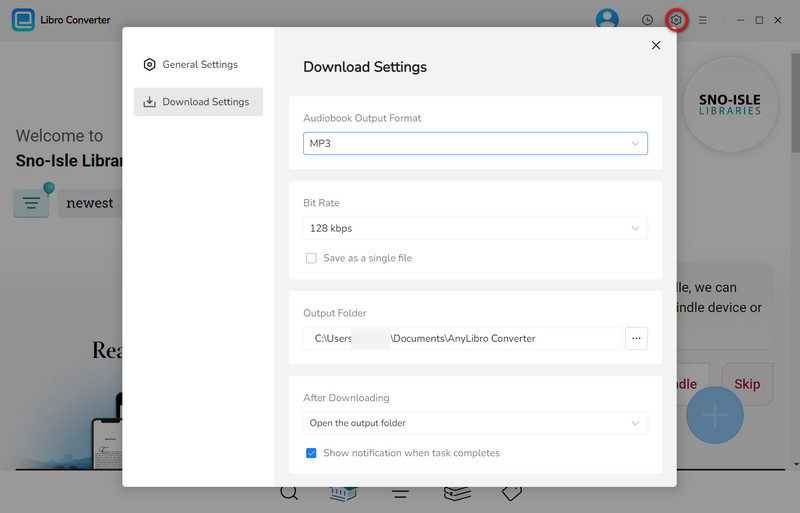
Step 3.Click the gear icon in the upper-right corner to open Settings. Choose the output format, bit rate and output folder as needed.
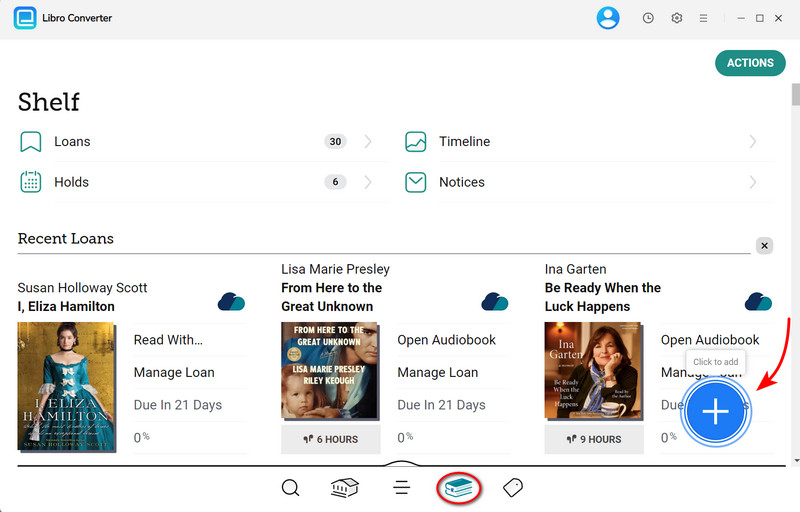
Step 4.Go to Shelf. Click the floating "+" button to add selected eBooks/audiobooks to the conversion queue.
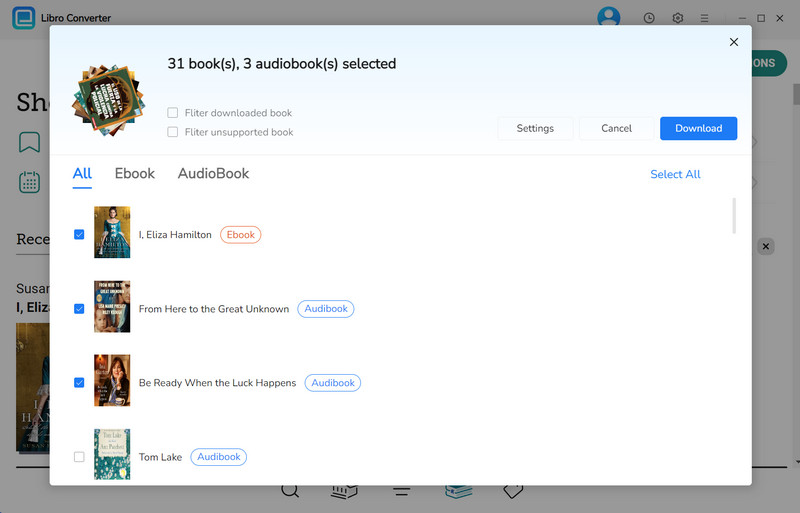
Step 5.Click the "Download" button to begin converting the eBooks/audiobooks you choose.
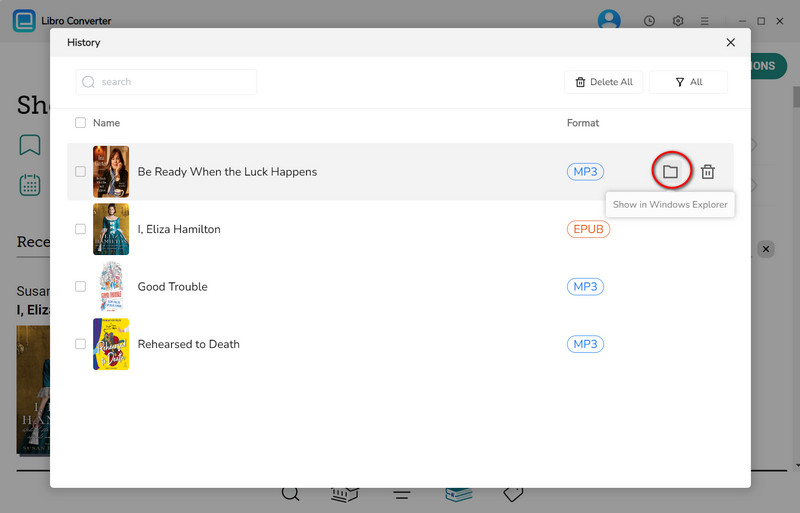
Step 6.Once conversion is complete, click the clock icon in the top-right corner to see finished downloads. Hover over a file and click the folder icon to open the output folder.
Once the conversion is complete, you can import the files to different devices as needed: for example, eBooks can be transferred directly to Kindle or Kobo, while audiobooks can be imported to a smartphone or tablet connected to Alexa, or even to your MP3 player. If you prefer to manage all your books in one place, you can also import them into Calibre, where you can organize, categorize, and edit metadata, making it easy to locate and sync them across all your devices.
Part 4: FAQ about Libby Hacks
Q1: Are Libby hacks safe to use with my library account?
A: Yes. These hacks don't alter your library account, affect your hold position, or violate standard borrowing rules.
Q2: Do Libby hacks work the same across all libraries?
A: Not always. Results can vary depending on a library's licensing policies, loan durations, and collection size.
Q3: If my library card expires or I switch libraries, will it affect the books I've already converted and saved?
A: Not at all. Books saved via AnyLibro Converter are standalone local files, completely disconnected from your library account status.
Q4: Besides "deep search", what other methods can efficiently discover new books in the library that I might like?
A:Below the details page of a book you like, you'll typically find "Similar Titles" recommendations.
The End
After mastering these Libby hacks, your digital reading experience will become more organized, flexible, efficient, and enjoyable than ever. Whether you want to reduce wait times, manage holds more effectively, or read on your own schedule, these methods will help you make the most out of Libby.
Additionally, if you wish to permanently save your favorite titles long-term or transfer them freely across devices, you can consider using a libby downloader like AnyLibro Converter. It allows you to convert borrowed ebooks and audiobooks into common formats, giving you true offline freedom — no internet required, compatible across devices, and accessible anytime you want.
Note: During the trial version, you can only convert and save the first 20% of each book. To unlock full access and convert entire books, you’ll need the full version.

Clara Whitman
Clara specializes in creating practical guides for book lovers and digital reading tools.
With years of experience exploring apps like Libby, Kindle, and Audible, she shares clear, step-by-step tips to help readers get the most out of their eBooks and audiobooks.
 Libby Audiobook Converter
 All-In-One Music Converter
 Spotify Music Converter
 Apple Music Converter
 YouTube Music Converter
 Amazon Music Converter
 Tidal Music Converter
 Streaming Music Recorder
 Photo Enhancer AI
 Video Enhancer AI
 Audible Audiobook Converter